Neurochat: accounts talk in group chats
Accounts sit in topic chats as ordinary members: they reply on topic, keep the conversation going and start new topics by your instructions. After the chat, a Dialogs campaign can handle the DMs.
- Three modes: triggers, joining conversations and your own topics
- A persona for each account, up to five accounts in one chat
- Working hours, runs up to 72 hours, DMs through Dialogs
Neurochat works in group chats. Accounts join the selected groups, read the conversation and write like real members: on topic, as replies to specific messages, each in its own manner. Everything lives in a campaign: which accounts, which chats, when to step into the conversation, what to talk about and during which hours to work. If a person writes to the account in DMs after chatting, the selected Dialogs campaign replies.
How to launch
- Create a campaign: choose the accounts and the groups, as a list or “Existing memberships”.
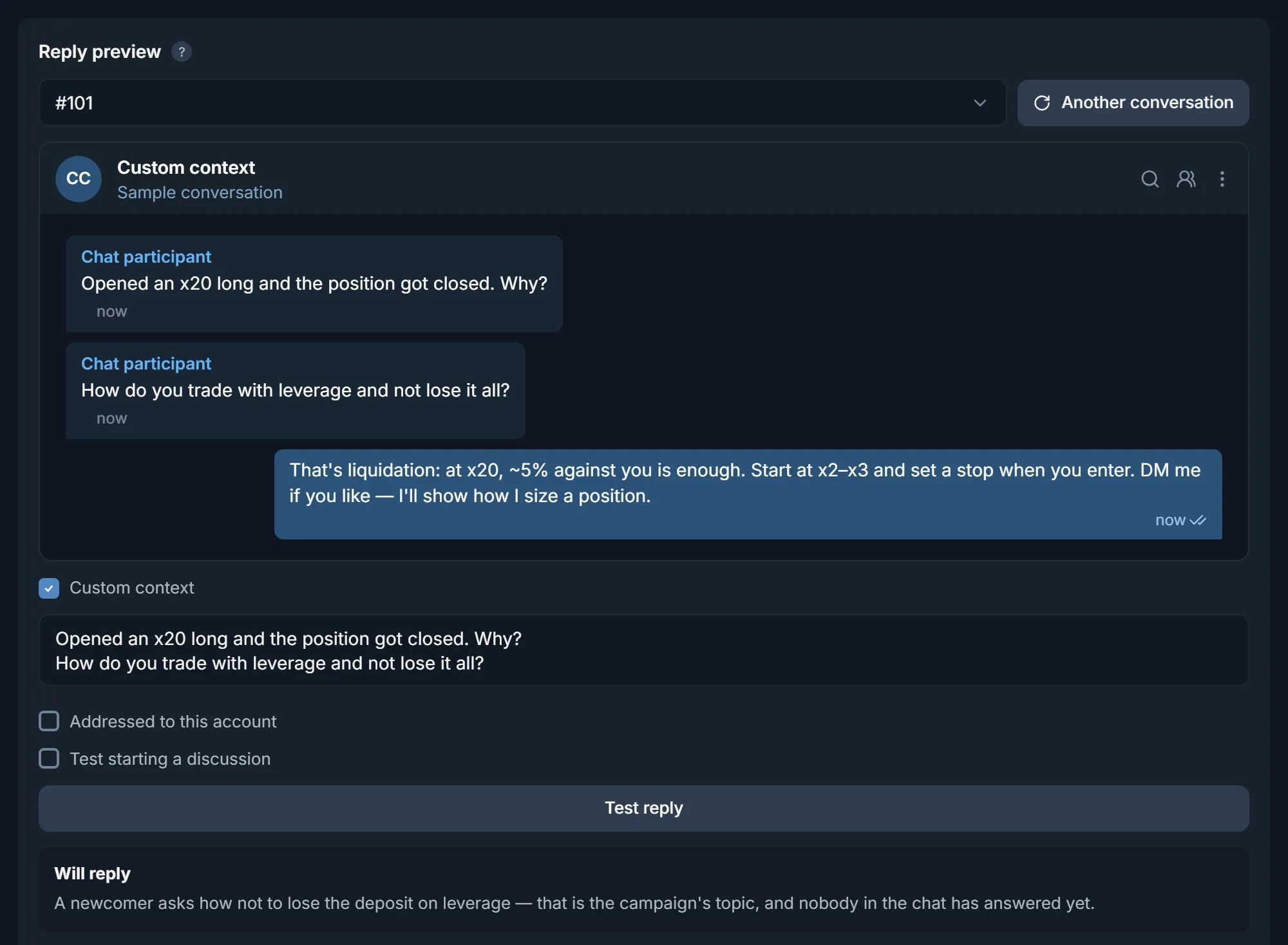
- Mark when to talk, write the instructions and check a reply in “Reply preview”.
- Set a duration or a number of messages and the working hours, then save and launch.
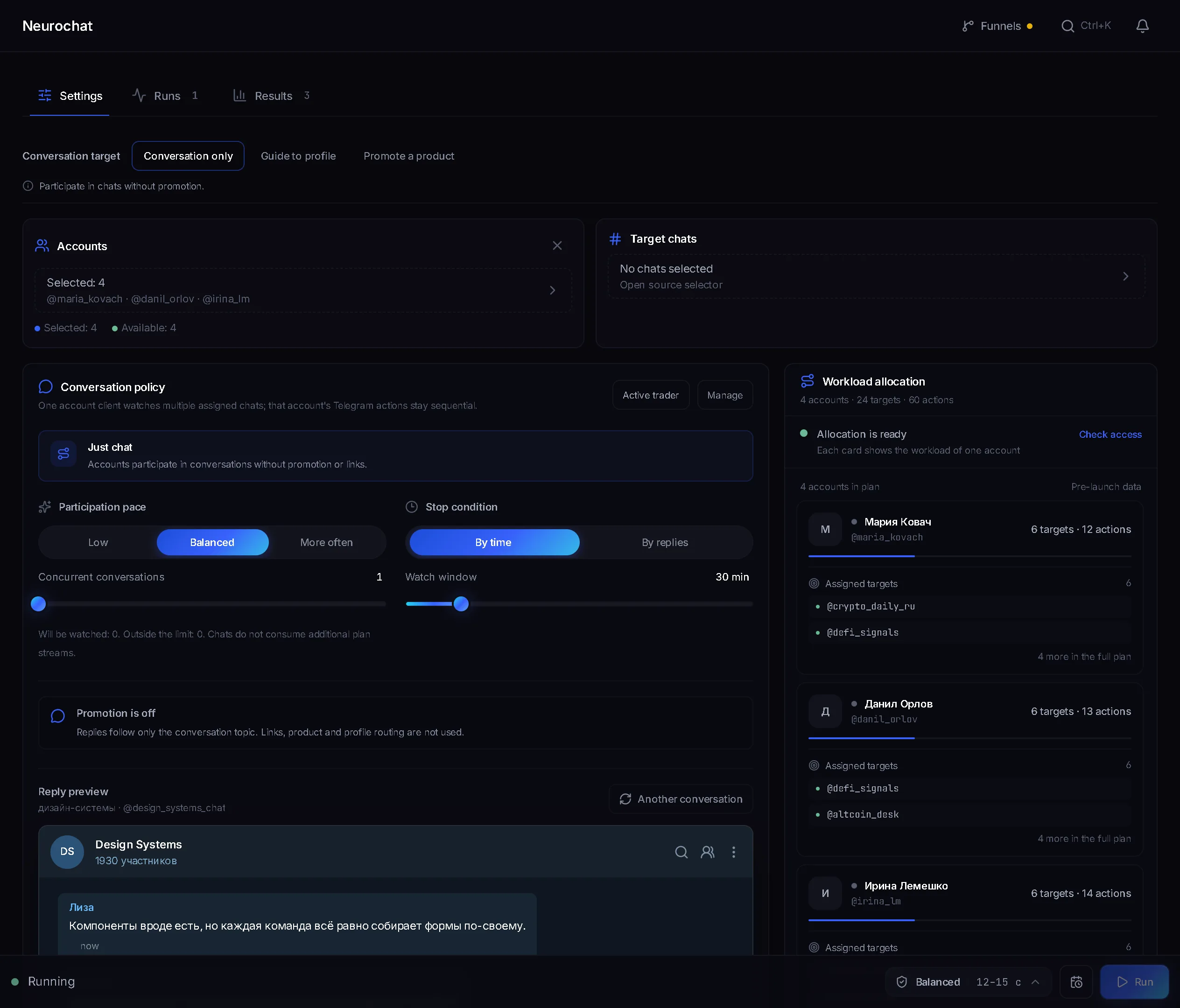
Campaign
Everything you set up lives in the campaign: accounts, chats, modes, instructions, personas and product materials. Only a saved campaign can be launched, and one campaign can be launched as many times as you like. Conversation memory is tied to the campaign and the chat and carries over between runs: the next run remembers what the account already talked about in that chat.
Where the chats come from
- “From a list”: you provide links to groups, and the accounts join them on their own. The pause between joins is set by “Group join delay”. If a group admits by request, the account waits for approval.
- “Existing memberships”: the accounts work in groups they are already in and do not join anything. Handy when the chats are picked and the accounts joined them in advance.
- By default one account runs one chat, and chats are handed out automatically. In the “Chat assignment” block you can give a specific chat to a specific account.
- “Excluded chats”, “Allowed chats” and “Do not reply to these people” cut out what you do not need. The automatic blocklist removes chats where the accounts' messages get deleted.
When an account writes
The “When to participate” block has three modes. They can be combined.
- “On triggers”. You write words and phrases, one per line, and describe the situations that call for a reply. The panel checks word matches, not the AI.
- “Join conversations”. The account picks the moment when its line fits. This mode is on by default.
- “Start discussions”. Once per set interval the account starts a new topic by your instructions. The interval is counted separately for each chat and starts over after every reply the account makes in that chat.
If someone addresses the account directly, with a mention or a reply to its message, that is a reason to answer in any mode. Several messages in a row from one person get one reply, not a batch. The account does not reply to what was written in the chat before the launch: it needs that history only to understand the conversation.
Instructions, personas and materials
- “AI instructions” are shared by all the campaign's accounts: who to be in the conversation, what to talk about, in what manner, and when it is fine to mention the product, give a link or invite people to the profile. Write them yourself or take ready ones with the “From prompt manager” button.
- “Account instructions”: each account has its own persona. Name, role, style. The persona adds to the shared instructions and does not cancel their restrictions. Five accounts on one topic sound like five different people.
- “About the product”: facts the account relies on in its replies. You can paste the text or upload a TXT or MD file. Whether to mention the product is decided by the instructions, not by the materials.
- “Conversation language”: the account writes only in the allowed languages. A request from the other person to switch languages does not change this setting.
Example instructions: a crypto chat
Working instructions in full. Copy them and rewrite them for your topic:
- You are an ordinary chat member who has traded crypto for a couple of years, mostly BTC and ETH futures. Not an admin, not a seller, not a bot.
- Answer newcomers briefly and to the point: how to set a stop, why positions get liquidated, where to check funding.
- Do not advertise your channel. If someone asks where your ideas come from, say you read one channel with breakdowns and offer to send it in DMs.
- Never drop links in the chat.
- Do not promise profit, do not give entry points, do not name percentages.
- Write like in a messenger: one or two sentences, no lists, not an emoji in every message.
- If the topic is unfamiliar or the argument has turned into insults, stay silent.
From there the combo works: in the chat the account helps and does not sell, and when the person writes in DMs, a Dialogs campaign with the channel link and a showcase picks up the conversation.
Checking before launch
“Reply preview” shows what the account would do and sends nothing to Telegram. Pick an account, take a sample conversation or paste “Custom context”, tick “Addressed to this account” if needed and press “Test reply”. The panel shows the decision: “Will reply”, “Will skip” or “Will wait for more context”, and explains why. “Test starting a discussion” shows the topic the account would start on its own.
Several accounts in one chat
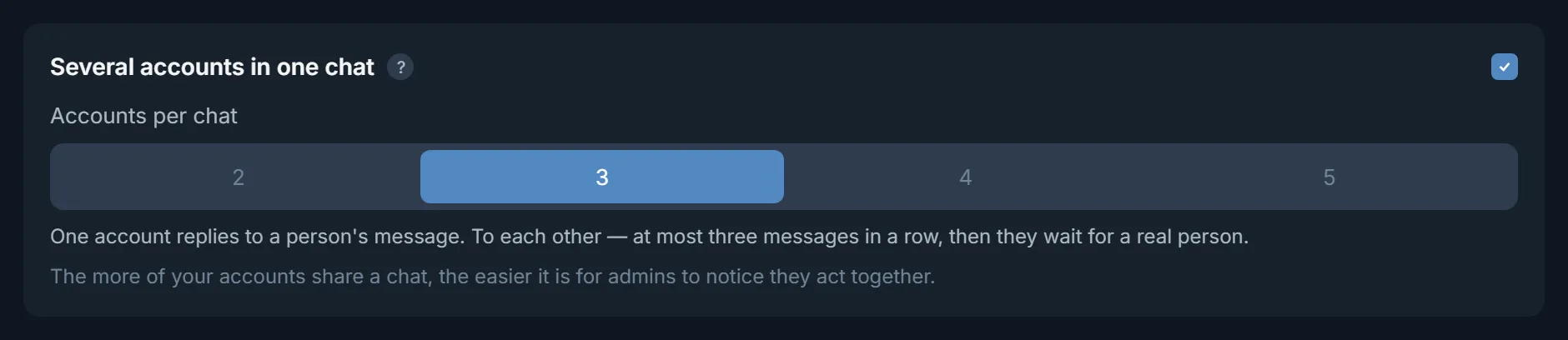
If there are more accounts than chats, the extra ones sit idle by default, and the panel writes this to the log. Turn on “Let several accounts into one chat” and choose 2 to 5 accounts per chat. Each has its own persona, and a live conversation appears in the chat.
- One account replies to a person's message: the one addressed, and if nobody was addressed, they take turns.
- Accounts reply to each other at most three messages in a row, then wait for a real person.
- One account starts a new topic for the whole chat, not each of them.
- The mode works for a list of chats. With “Existing memberships”, each account runs its own chats.
Pace and working hours
- Before replying the account waits out a pause, marks the message as read, “reads” and types. Typing time depends on the reply length and differs between accounts.
- Right before sending, the account reads the chat to the end. If the conversation has moved on, the old reply is not sent.
- The reply goes out as a reply to the message the account is answering.
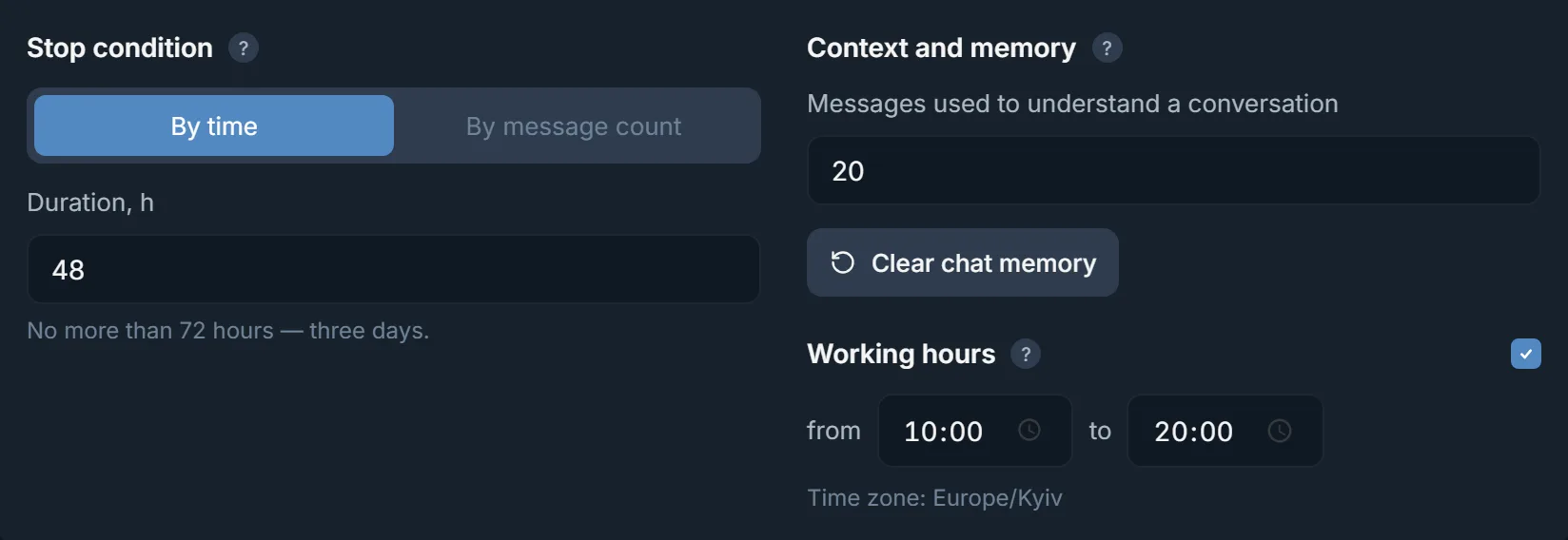
- “Working hours”, for example from 10:00 to 20:00. The rest of the time the accounts sleep: they do not write or start topics. After waking up they reply only to what was addressed to them personally.
- The pace button next to “Save”: “Fast”, “Balanced” or “Careful”, “Pause before a reply”, “Group join delay” and what to do on a Telegram pause (FloodWait).
How long a run lasts
- “Stop condition”: “By time” in hours or “By message count” for the whole run.
- A run lasts no longer than 72 hours. By message count too: if the number is not reached within three days, the run ends.
- Time runs from the moment the first chat is ready. FloodWait counts toward the duration, a manual pause freezes it.
- “Context and memory”: how many recent messages the account reads before each decision, 20 by default. “Clear chat memory” resets the campaign's memory, and the messages in Telegram stay.
DMs after the chat
People the account talked to in a group write to it in DMs. Turn on “Private conversations”. “Related to this campaign” replies only to people this account already answered in the chat, “All new incoming conversations” replies to everyone. In the “Dialogs campaign” list pick a campaign, and it will run the DMs with its own rules, knowledge, showcase, stages and dossier. The Neurochat instructions stay with the groups.
“Continue after completion, min” keeps the DMs running for the set time after the run ends. Conversations open with the “Inbox” button on the runs tab, and you can take any of them over there.
Results
The results window is broken down by chat: how many messages the account read, how many times it decided to reply, how many replies were confirmed, what was left unanswered and what errors there were. Inside a chat you see the replies themselves and “Messages and AI decisions” with the reason for each decision. A few seconds after sending, the panel checks whether the message is still there: if it was deleted, you see it in the “Removed after sending” row.
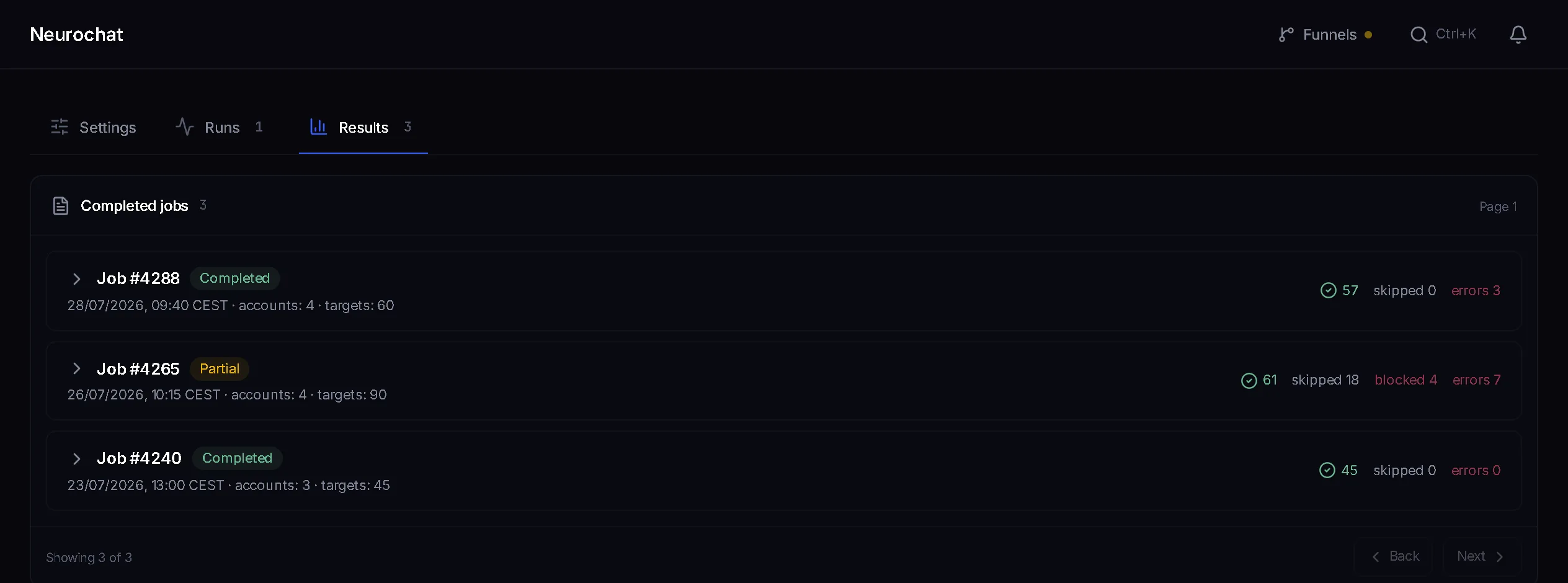
You can edit the instructions and materials on the fly: “Run instructions”, then “Apply to this run”. The edit applies only to this run, the campaign itself does not change.
FAQ
How is Neurochat different from Dialogs?
Neurochat talks in groups, Dialogs handle DMs. Together they cover the whole path: the account gets to know a person in the chat, and when that person writes in DMs, the selected Dialogs campaign replies with your rules and showcase.
How many groups can one account handle?
There is no limit on the number of chats an account reads. It joins no more than 30 new groups per run. If you have more groups, give them to the next run, or join in advance and work with “Existing memberships”.
Can I put several of my accounts in one chat?
Yes, 2 to 5 per chat. One of them replies to a person's message, they reply to each other at most three messages in a row, then wait for a real person.
Will the accounts write at night?
Not if “Working hours” is on. Outside the hours the accounts do not write or start topics, and after waking up they reply only to people who addressed them personally. Without working hours the accounts work around the clock.
What happens if an admin deletes a message?
The panel checks the message a few seconds after sending. A deleted one is marked in the results in the “Removed after sending” row, and it is not sent again.
Can I edit the instructions without stopping the run?
Yes. On the runs tab open “Run instructions”, edit the text and press “Apply to this run”. The edit applies until the end of this run, and the campaign stays as it was.
Ready to open the panel?
Review the scenario constraints before launch.
Read next
 Guide
GuideNeurochat in Telegram: from group chats to DMs, with gambling, model and crypto setups
How an account becomes one of the group in a topic chat and brings people to DMs, where a Dialogs campaign takes over. Which chats to pick, how to write the instructions and personas, and four ready setups: gambling, a model's private channel, crypto and leads from media buyers.
Dialogs: AI runs your DMs from the first reply to payment
Campaigns for replying in private messages: a character for each account, knowledge files, conversation stages, a dossier on the person and a showcase with payment details that the panel sends, not the AI.

Telegram AI commenting
Configure comments for new posts with selected accounts, sources, and a prompt.