Proxy center
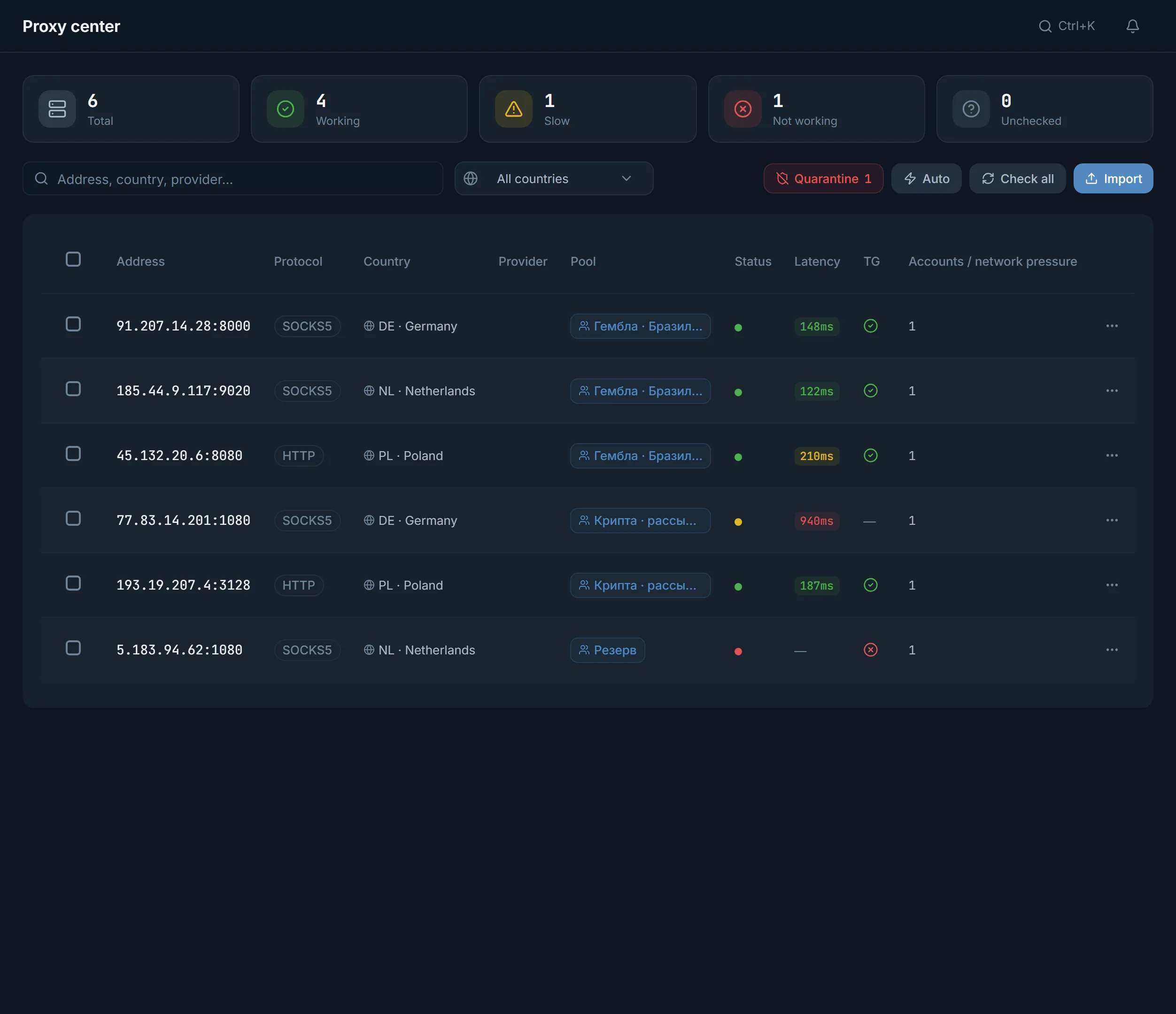
Import, check and assign proxies for accounts: four protocols, a Telegram check, a quarantine for failed ones and smart assignment across the accounts.
- Import four protocols from lines or a file
- Telegram check and a quarantine for failures
- Smart assignment across accounts
A proxy is what an account reaches Telegram through. Whether Telegram trusts the account depends on it, so a proxy matters no less than the account itself. Proxy center is the store of all proxies: this is where they are imported, checked and handed out to accounts.
How to use it
- Import proxies as lines or a file.
- Check them: only ones that pass the Telegram check can be assigned.
- Hand proxies out to accounts manually or with Smart assignment.
Import
Proxies are added as a list or a .txt file. Four protocols are supported: HTTPS, SOCKS5, HTTP and MTProto. The panel reads a line in any usual form: host:port, host:port:login:password, or with a scheme like https://login:password@host:port. Lines without a scheme are imported as HTTPS. Right after import the panel runs a check on the added proxies so you can see whether they are alive.
The table and statuses
On top are counter tiles: Total, Working, Slow, Failed, Unchecked. Clicking a tile leaves only those proxies in the table. A row shows the address, protocol, country, provider, pool, status, latency in milliseconds, a separate Telegram-check mark and the number of bound accounts.
- Working: the proxy responds and Telegram is reachable through it.
- Slow: it works, but the latency is high.
- Failed: it does not respond or Telegram is unreachable.
- Unchecked: it has not been checked yet.
The Telegram check and quarantine
You can check one proxy, the selected ones, or all under the current filter. A check updates the status, the latency and separately answers whether Telegram specifically is reachable through the proxy, because plain internet and Telegram are not the same thing. Failed proxies gather in the 'Quarantine': it shows the reason for each, and from there a proxy can be returned for a re-check once the cause is fixed.
Assigning to accounts
There are three ways to hand out proxies. Manually, pick accounts for one proxy. In bulk, assign selected proxies to selected accounts. And 'Smart assignment': the panel itself spreads accounts without a proxy over free working proxies and shows the coverage percentage. Proxies are handed out round-robin, with no artificial one-to-one limit, but if too many accounts land on one address the panel highlights it in the accounts column.
There is one hard rule
An account can only be assigned a proxy that passed the Telegram check. The panel will not assign an unchecked or failed proxy: an account must not reach Telegram through an address nothing is known about.
FAQ
Which protocols are supported?
HTTPS, SOCKS5, HTTP and MTProto. A line can be pasted as host:port, host:port:login:password, or with a scheme; without a scheme the proxy is imported as HTTPS.
Why won't a proxy assign to an account?
Only a proxy that passed the Telegram check can be assigned. If a proxy is unchecked or the check failed, check it first: an account must not connect through an address nothing is known about.
What is quarantine?
It is a separate list of failed proxies with a reason for each. Once the cause is fixed, a proxy is returned from quarantine for a re-check and becomes available for assignment again.
How many accounts should I put on one proxy?
There is no hard limit; proxies are handed out round-robin. But the more accounts on one address, the higher the risk, so the panel highlights overloaded proxies in the accounts column to help you keep the load reasonable.
How does Smart assignment differ from manual?
It finds every account without a proxy itself and spreads them over free working proxies, showing the coverage percentage. That is faster than assigning by hand when there are many accounts.
Ready to open the panel?
Review the scenario constraints before launch.
Read next

Account manager
The workspace for all your accounts: tdata and session import, live statuses, a card for every account, and bulk actions over hundreds of accounts at once.

Account pools
Named account groups with their own proxies and a replacement policy: easy to pick in jobs and to keep projects apart.
 Guide
GuideWhere do you get accounts and proxies?
Buy Telegram accounts and proxies from connected providers inside the panel: catalog, seller profile, payment and import.