The morning starts with a result
Warmup and mailing ran on schedule while you slept. All that is left is to open Dialogs and reply to the people who wrote.
Put recurring tasks on a schedule once and the panel runs them by itself: warmup in the morning, mailing after it, in the right time zone. You come in to look at the result, not to press Run every day.
In short
Telegram automation in TeleTraff is built on schedules. You assemble a schedule from steps, each with its own module, accounts and targets, and choose when it runs and in which time zone. By default steps start at the same time; ordering is switched on separately. The server runs the tasks, so the browser can be closed. Upcoming runs are visible in advance, past ones stay in the history.
TeleTraff editorial teamUpdated: Checked in the panel
Warmup and mailing ran on schedule while you slept. All that is left is to open Dialogs and reply to the people who wrote.
Mailing can wait until warmup finishes successfully. If warmup fails, mailing does not start.
An account without a free stream does not sit in a silent queue: the panel says which account it is and why it did not start.
Look at what you run by hand more than once a week. Usually that is warming up new batches, mailing to a fresh base and collecting bases again with a parser. All of these are candidates for a schedule.
Schedules live in the Automation section. Any module except Dialogs can be scheduled: warmup, mailing, AI commenting, Neurochat, the inviter, parsers and the rest. The full description of the screen is in the automation guide.
Each step has its own settings. To avoid typing them again, click Load saved module settings: the step takes what is saved on the module page. So first get the module working by hand, then put it on autopilot.
If the modules are already set up, it takes a few minutes.
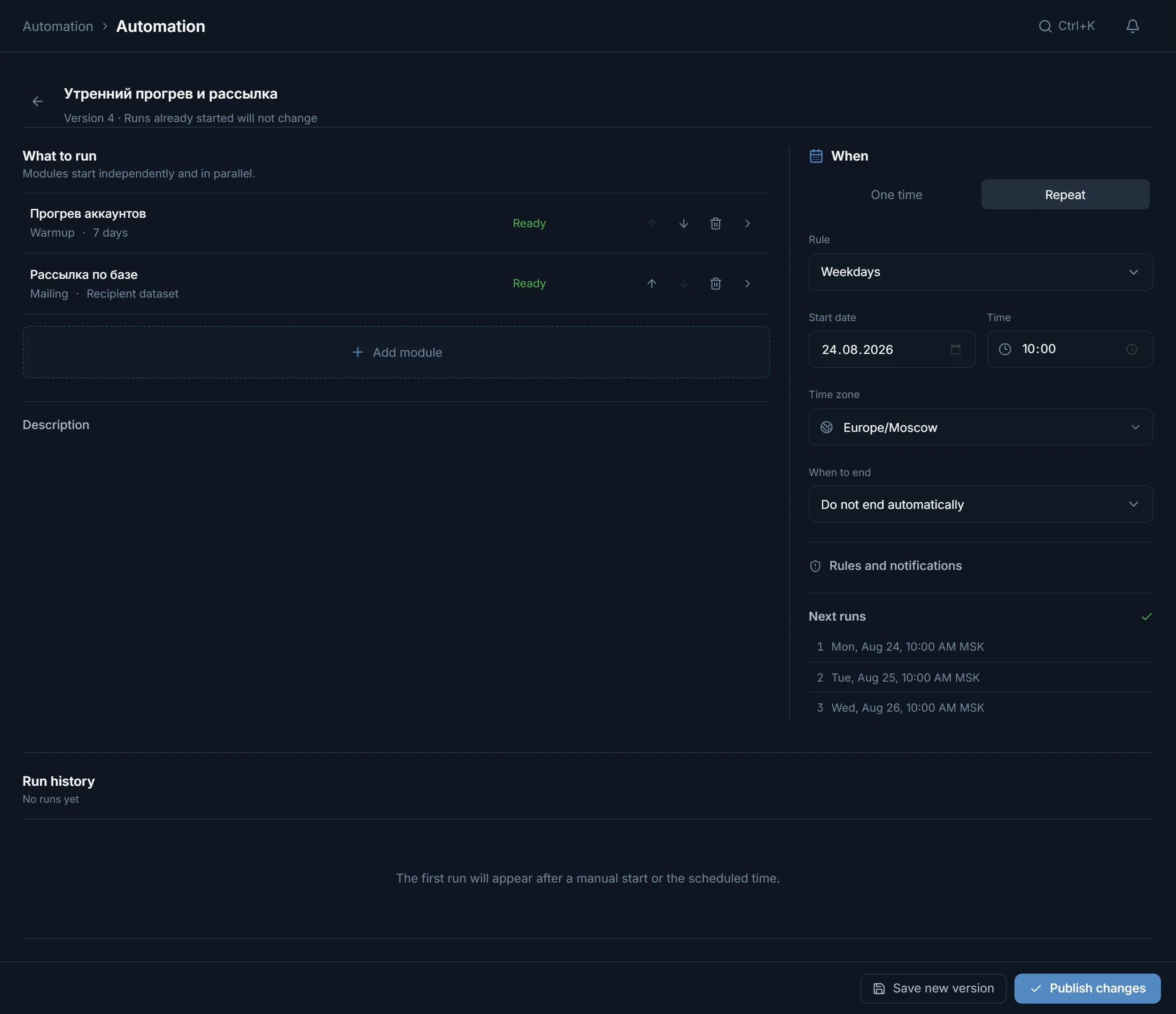
In the What to run block click Add module. Each step comes with its own accounts and targets, and the Set up button opens its settings. The Ready to run mark means the step has been checked.
By default a step has Execution order: Without waiting for other steps, and all steps start together. To make mailing follow warmup, set it to After successful completion.
The When block sets how often to repeat, the first run date, the time and when the schedule ends.
Set it by your audience, not by yourself. Mailing to Brazil at three in the morning São Paulo time gets few replies.
The panel shows the dates when the task will start. If they are right, click Publish changes. Runs that have already started are not changed by an edit.
The When block has six repeat options. Here is what each is usually used for.
| Option | Typical task |
|---|---|
| Once | A delayed mailing start for Monday morning |
| Every day | Warmup that runs daily at the same time |
| On weekdays | B2B mailing nobody reads at weekends |
| On chosen weekdays | Warming up new batches on the days they arrive |
| Once a month | Another pass over an old base |
| At an interval | A regular run not tied to a weekday. No more than once an hour, and warmup no more than once a day |
Three scenarios people most often start with.
A warmup step followed by a mailing step with After successful completion. If warmup fails, no mailing goes out from unready accounts.
Mailing in the audience's time zone, repeated On weekdays, starts when people open Telegram, not when you get round to pressing the button.
A parser repeats the collection with the same queries, and a new list appears in My datasets. From there it is sent to work with the Use button.
A step takes the module's settings, so first see how the module performed by hand. These are the screens worth opening.
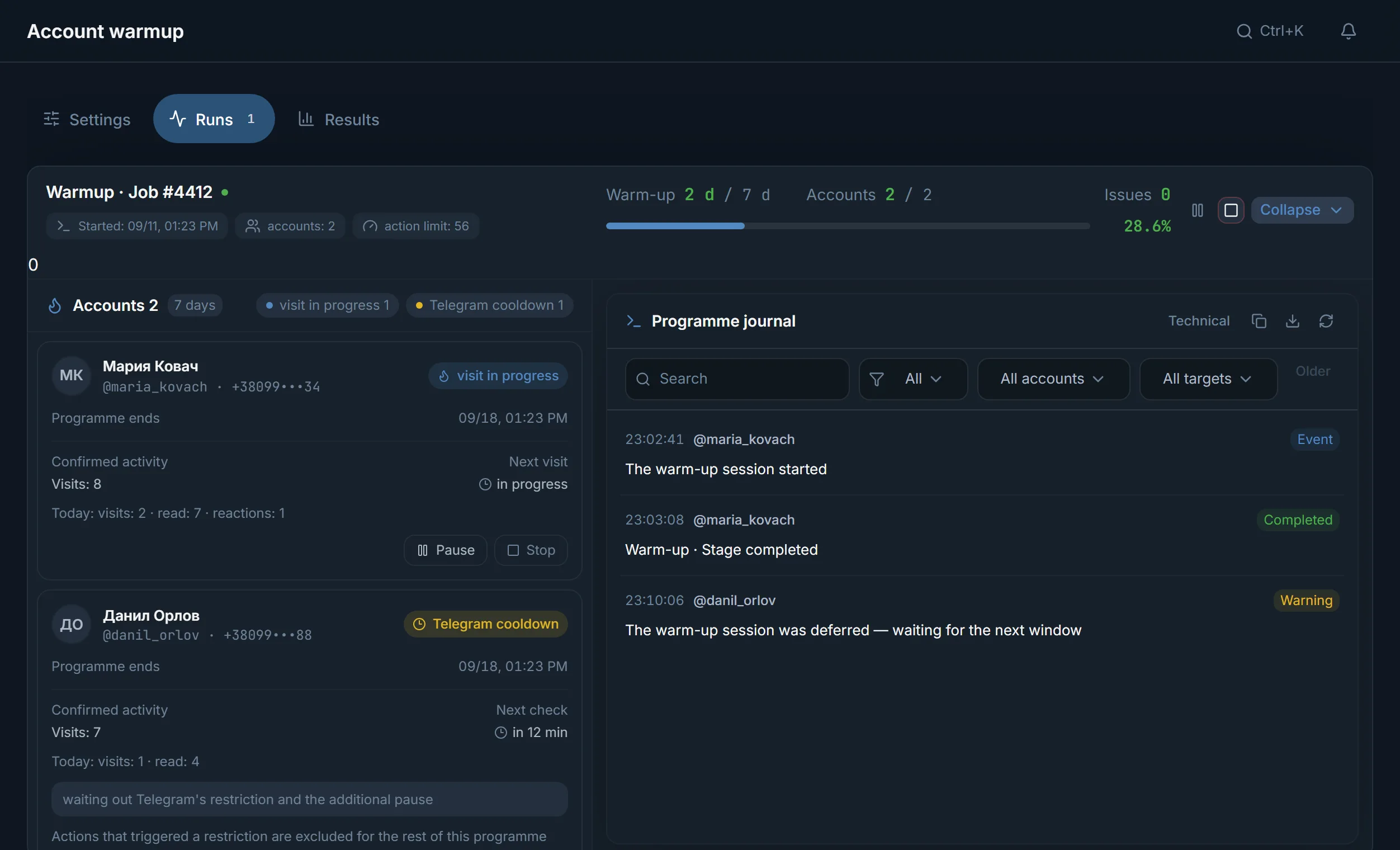
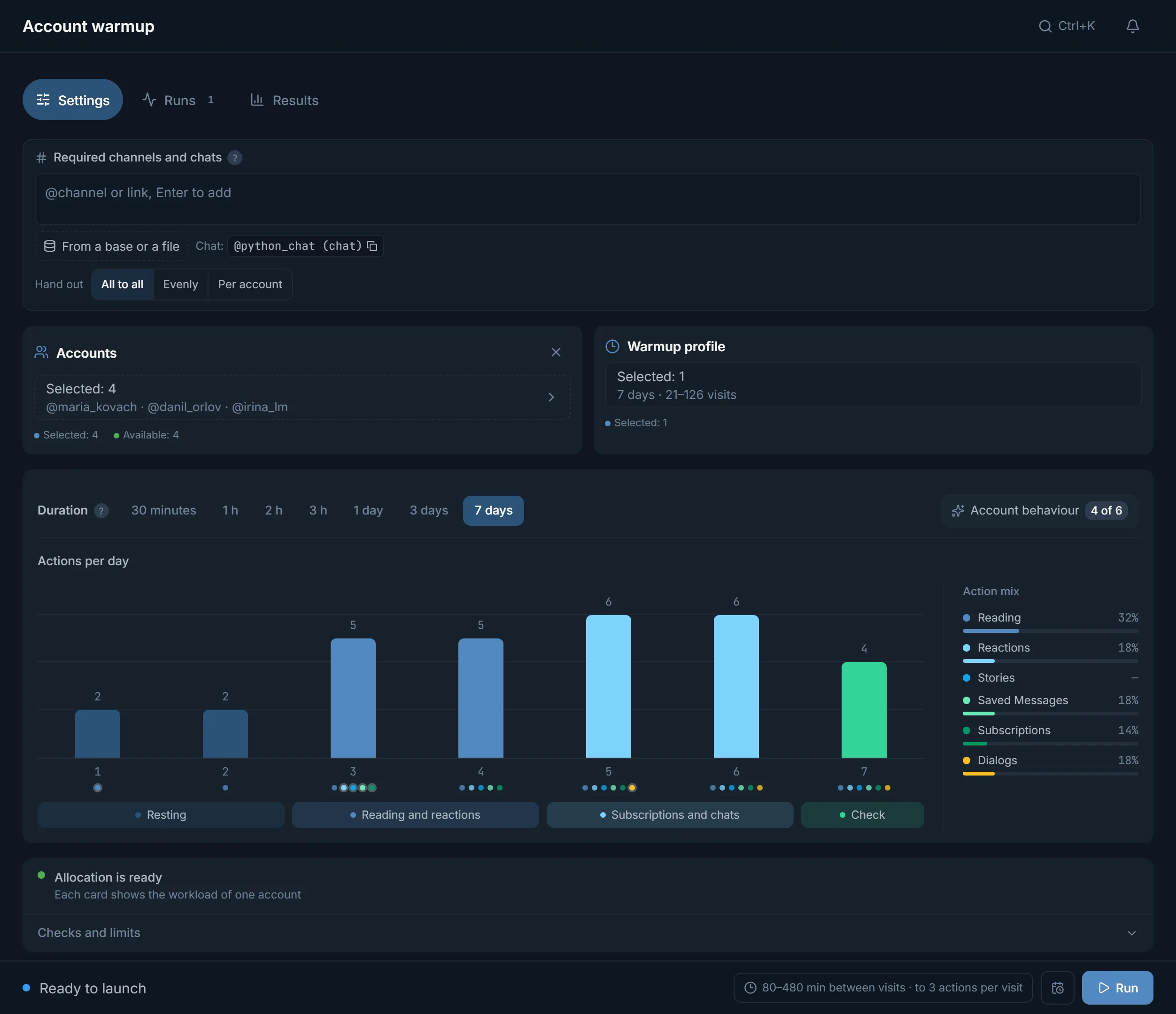
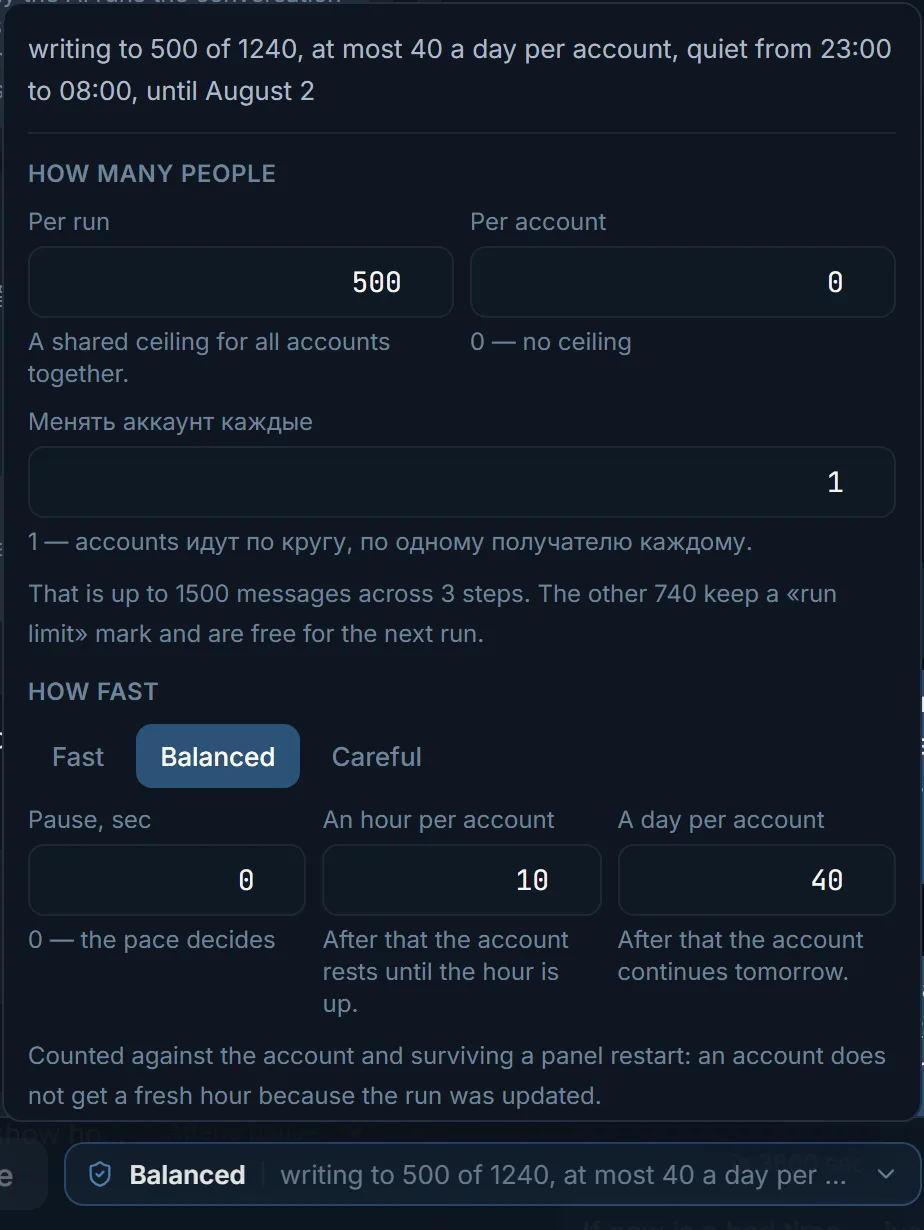
As many as the module has free streams at start time. A stream is an account currently busy with a task, and it is counted within each module separately.
If a manual mailing has taken almost all mailing streams in the morning, the scheduled task starts on the rest. The other accounts do not queue up: the panel lists them with a reason. If there are no free streams at all, the run fails and does not wait either. Warmup streams are not touched.
Streams per module: 10 on Starter for $24, 50 on Pro for $59, 100 on Ultimate for $117, each plan for 30 days. The comparison is on the pricing page.
A saved schedule has a Run history. It shows which run went through and which started on fewer accounts than planned.
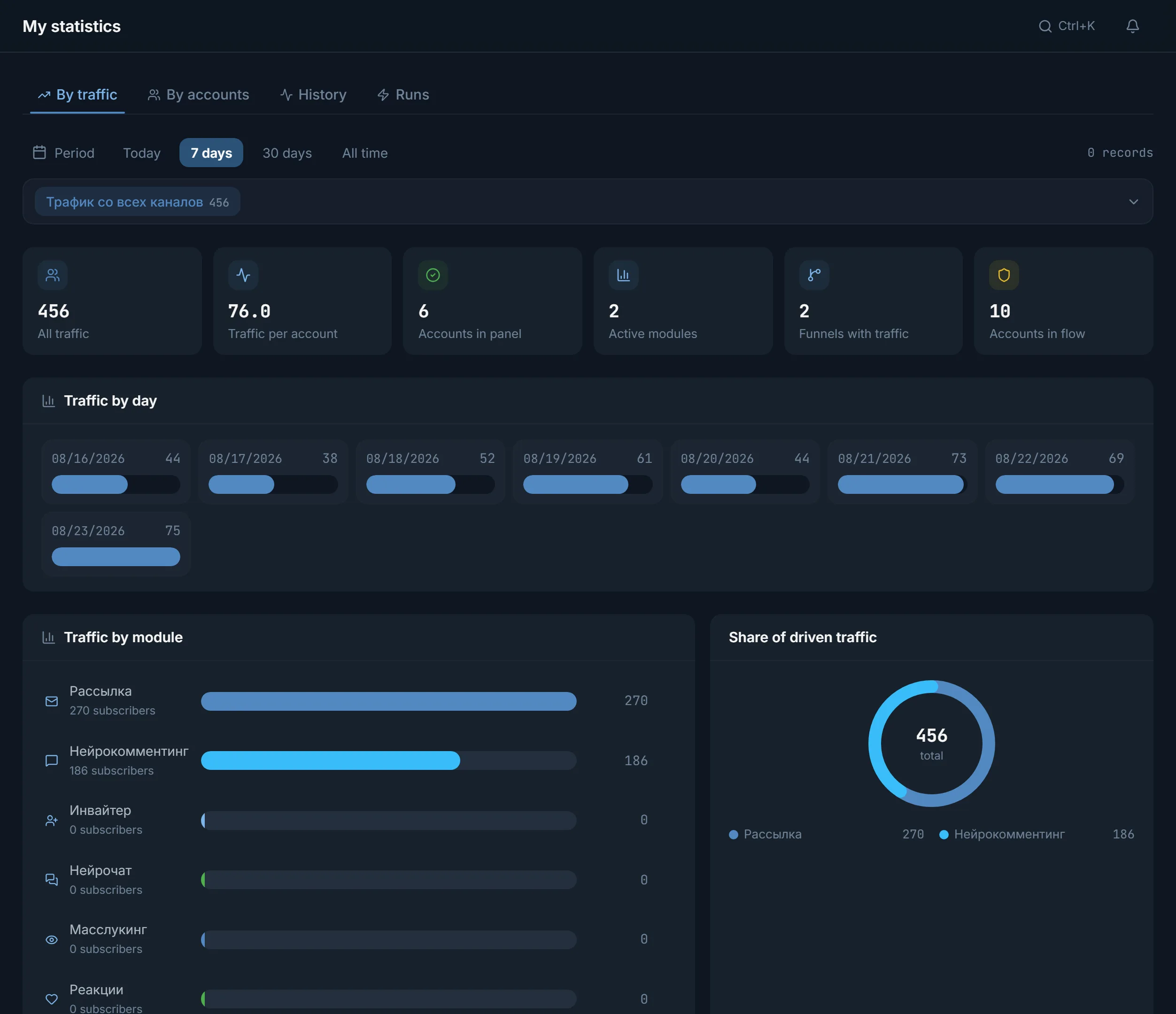
Details of a run are in the module itself; for warmup that is the Programme journal. A summary of all runs is in statistics on the Runs tab. To see whether it brought people, open the Traffic tab: it counts subscribers if a funnel is connected to the module.
If you have several tasks, spread them over time so they do not share the streams of one module.
Terms on this page
Yes, it is the most common pair. Add both steps to one schedule and give mailing Execution order: After successful completion. If warmup fails, mailing does not start.
Not by default: all steps start together. Ordering is switched on per step, through Execution order.
Add mailing to a schedule, choose Once, the date, the time and the recipients' time zone.
The task starts on accounts with free streams. The rest do not start and do not wait: the panel names each one with a reason. If there are no free streams at all, the run fails.
Yes. The panel's server runs the tasks; the browser does not need to stay open.
Yes. Edit it and click Publish changes. Runs that have already started are not changed, and Upcoming runs shows how the dates moved.
Read next
Other sections
Trial access: 3 days with no card, 3 streams in every module. On the trial, warmup cannot last longer than the days left.