Account manager
The workspace for all your accounts: tdata and session import, live statuses, a card for every account, and bulk actions over hundreds of accounts at once.
- Import tdata, sessions and archives
- Account card: profile, proxy, 2FA, channels
- Bulk actions over all accounts
Account manager is the workspace for all your accounts. This is where accounts appear after import, where you see each one's live status, where a card opens with the profile, proxy and session, and from where a single move runs actions over hundreds of accounts at once. Every other module takes its accounts from this very list.
How the work goes
- Import accounts: a Telegram Desktop folder, session files or an archive.
- Filter the accounts by status, pool and tags, and sort out the problem ones.
- Select the ones you need and apply a bulk action or open the card.
What the list shows
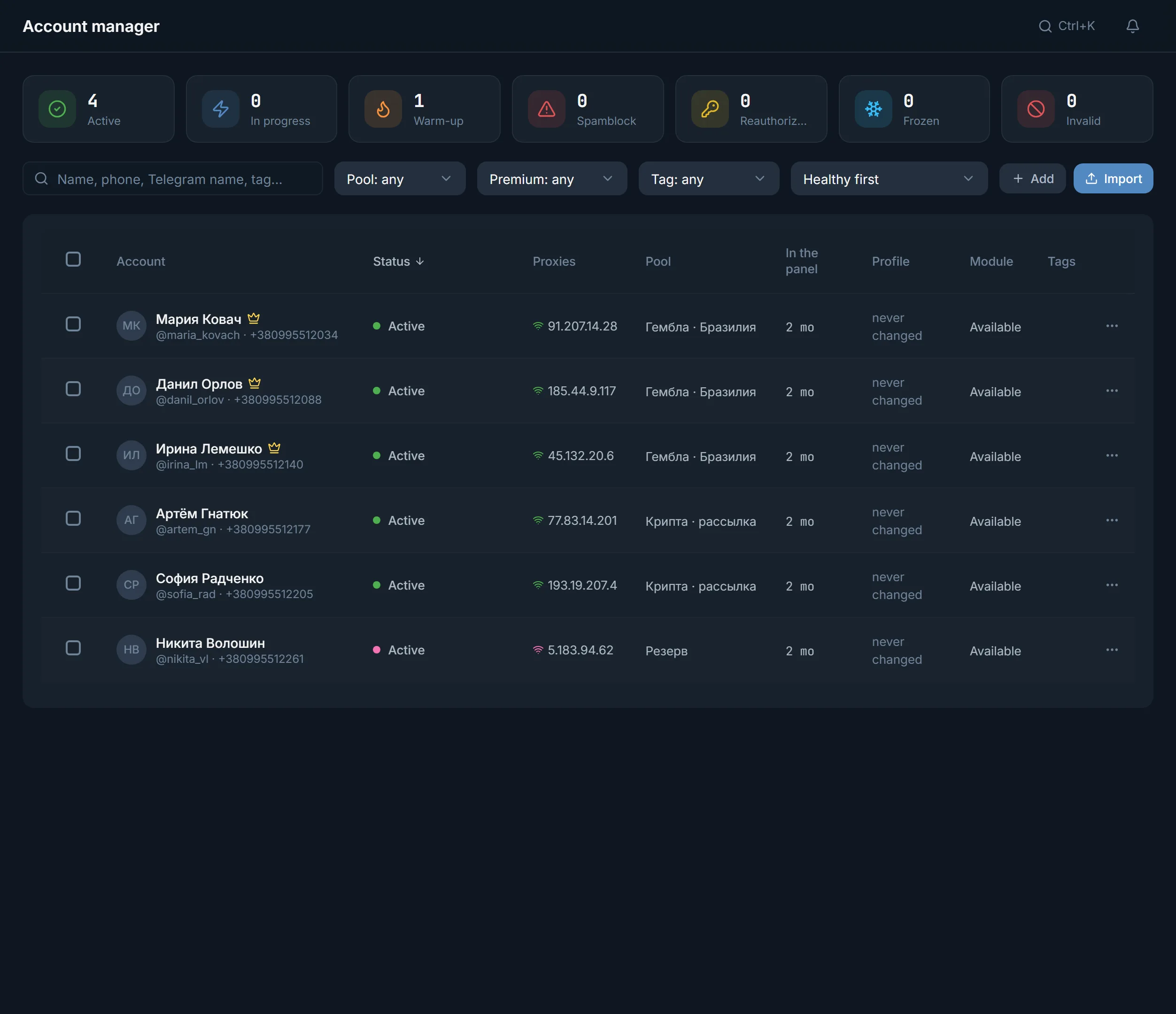
On top are seven counter tiles: Active, In progress, Warmup, Quarantine, Spam block, Frozen, Invalid. They are both a summary and a filter: clicking a tile leaves only those accounts in the list. Each row is one account with its name, @username and phone, and next to it columns for status, trust level, proxy, pool, how long the account has been in the panel, when its profile last changed, and which module it is busy with right now.
Account statuses
- Active: the account is free and ready to work.
- In progress: the account is running a job right now, with the module shown next to it.
- Warmup: the account is busy warming up.
- Quarantine: the panel keeps the account out of runs until you return it to work.
- FloodWait: Telegram asked to wait, with the time shown in minutes.
- Temporary spam block, Permanent spam block, Geo spam block: Telegram restricted the account from messaging strangers.
- Frozen, Banned: the account is unavailable and does not go into work.
- Session is not valid: Telegram no longer accepts this session.
- No proxy, Proxy is down: the account has nothing to reach Telegram through.
- Not checked: the account has not been checked yet.
- Disabled: the account stays in the database but is taken out of working runs.
A temporary spam block shows the date it lasts until next to the status. The clickable restriction badge opens an explanation with the reason.
Search, filters, sorting
- Search by name, phone, Telegram name or tag.
- Filters: pool (including 'No pool'), Premium, tag with an account count.
- Sorting: healthy first, attention-needed first, by date added, by name, Premium first.
- Filtering, sorting and paging are computed server-side, so the list stays accurate even when there are many accounts.
Importing accounts
Bulk import is a four-step wizard: upload, preview, profile, result. The panel accepts a Telegram Desktop folder (tdata), session file pairs (.session together with .json, paired automatically even under different names) and ZIP or RAR archives. On the profile step each account is assigned a proxy, and the panel checks the proxy before importing: without a working proxy an account is not taken into work. Here you can also generate a profile right away (name, bio, avatar) and put the imported accounts into a pool.
Single adding goes by phone number or by QR code. By number: pick a country, enter the number and get a code, plus a two-factor password if needed. By QR: scan the code in the Devices section on the phone. Both require a proxy.
The account card
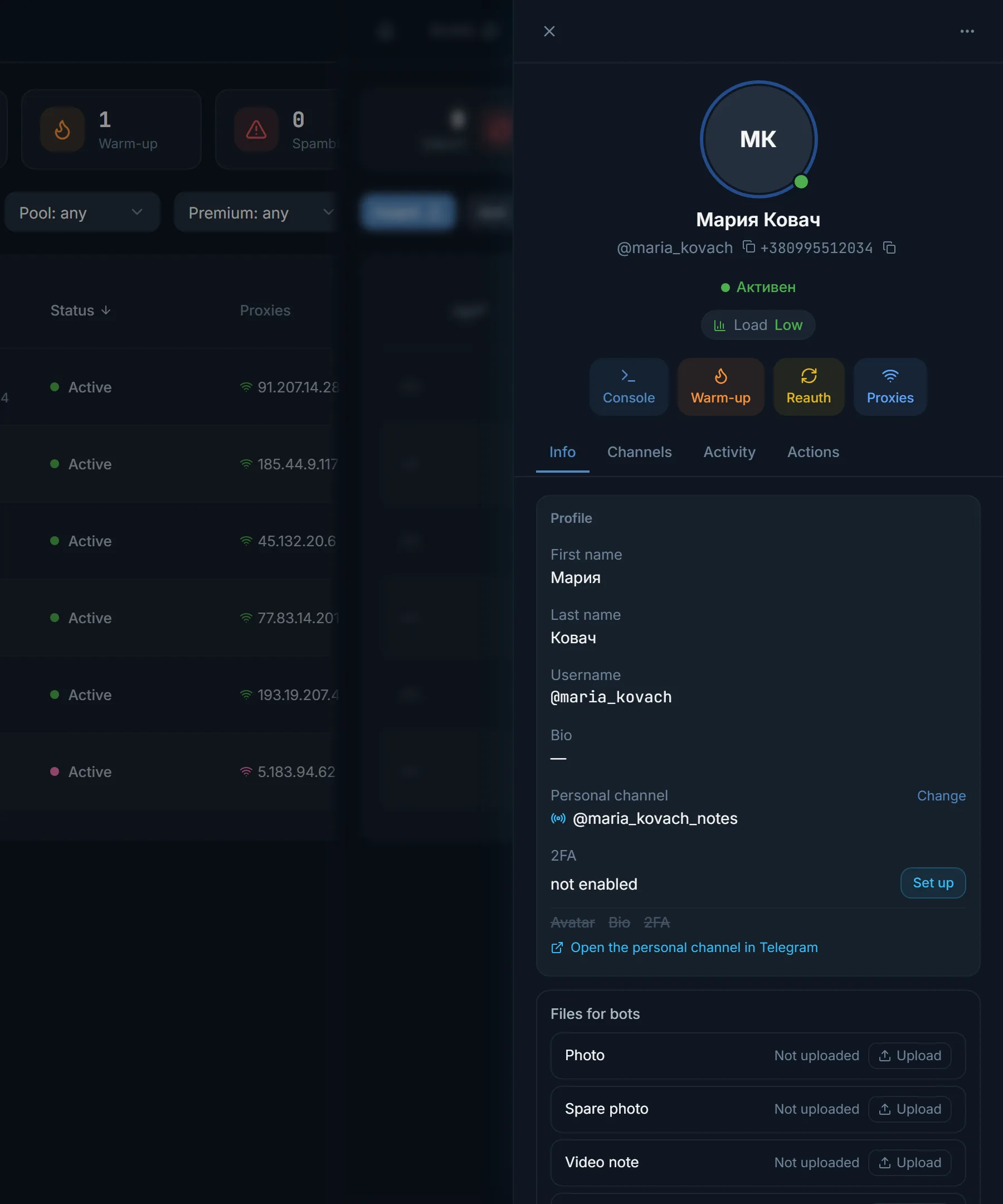
Clicking a row opens a side card with four tabs. 'Info' is the control center for a single account:
- Profile: first name, last name, username, bio and the personal channel are edited as one draft and go to Telegram with a single 'Save to Telegram' button.
- Two-factor: shows whether a password is on and whether it is stored; you can reveal, set or change it.
- Proxy: protocol, address, status, ping and country; 'Accounts per proxy' shows how many accounts sit on the same network, plus a change-proxy button.
- The account's tags and pool.
The 'Channels' tab shows what the account is subscribed to and tells 'no channels' from 'the panel has not read the subscriptions yet'. 'Activity' is an event feed. 'Actions' is pure per-account statistics: where it works most, how many Telegram pauses it had, how its actions split by type.
Bulk actions over all accounts
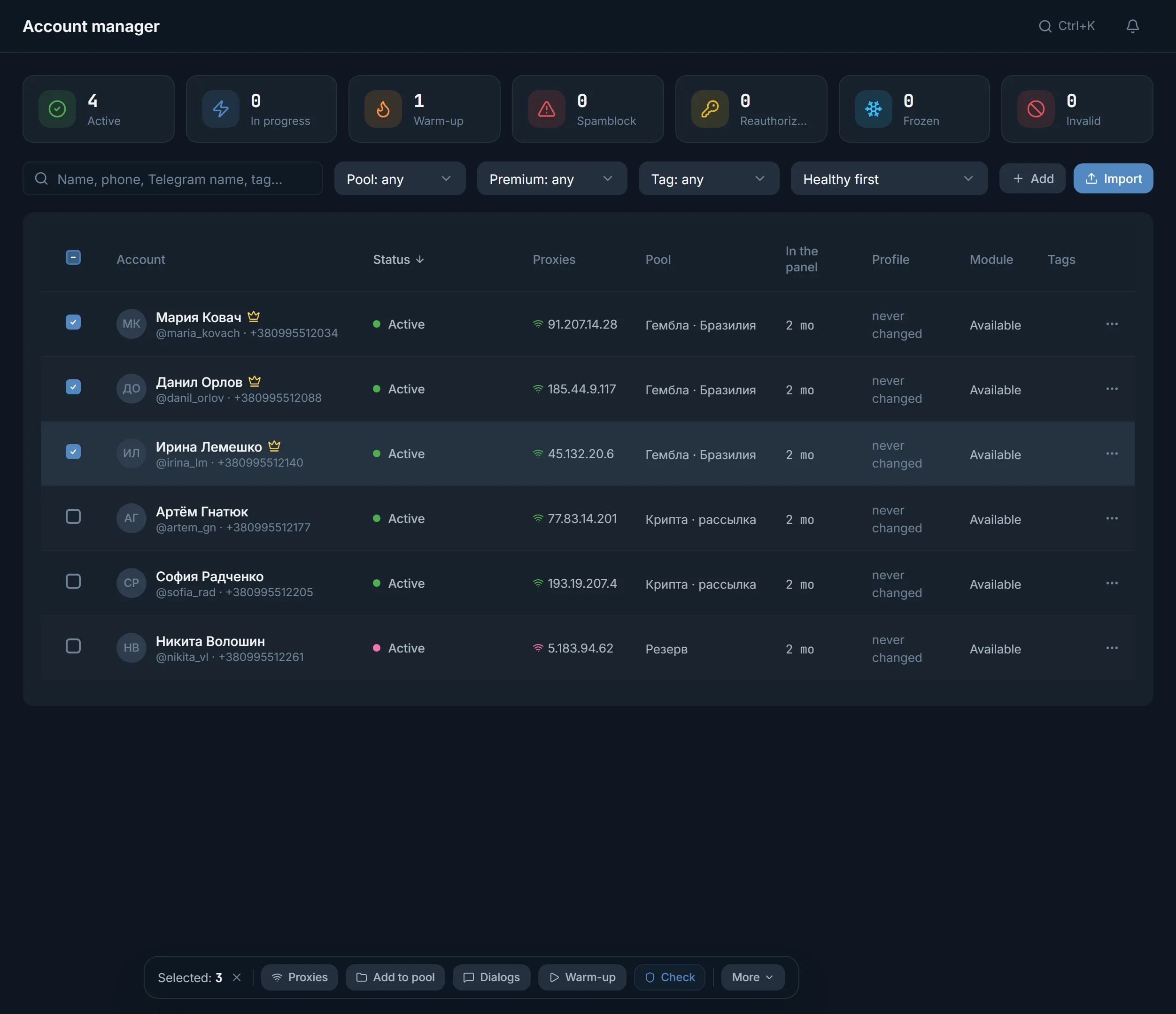
Tick several accounts with checkboxes (or 'Select all by filter') and a bulk actions panel appears at the bottom. The most common ones are at hand: Proxy, To pool, Dialogs, Warmup, Check. The rest live in the 'More' menu, grouped:
- Proxies and pools: assign proxy, auto-distribute over working proxies, add to a pool, remove from a pool.
- Profile: generate profile, tags, account role. The role decides which modules take the account into work, and 'Reserve' is taken nowhere.
- Session: set two-factor, reauth (the panel moves the account to its own new session and logs out of the old one; with the checkbox on, the old session first closes other logins; about 10–15 minutes), Quarantine, Return to work, Remove spamblock for a temporary or geo spam block.
- Telegram actions: join channels and leave them, build folders, copy stories, create channels.
- Data: export to JSON or CSV, export sessions in session+json or tdata format.
- Dangerous: disable, archive, delete.
A separate 'Check' button opens the checker: it polls the selected accounts and refreshes their status, restrictions, FloodWait, freeze and authorization, and optionally checks Premium, dialogs, channels and two-factor.
Telegram folders
The 'Folders' bulk action builds a real Telegram folder of channels on each account: from your own list of links, from a saved dataset or from what the account is already subscribed to. 'Folder manager' shows the folders built earlier per account with their states: done, queued, Telegram asked to wait, folder exists but no link.
Important about deletion: removing a folder in the manager means removing the panel's record of it. On the accounts themselves the folder stays, because the panel cannot delete it inside Telegram for the account. Renaming in the panel also applies on the accounts only on the next run.
FAQ
In what form should I import accounts?
Three ways: a Telegram Desktop folder (tdata), a session file pair (.session together with .json) or a ZIP or RAR archive. The panel recognizes the format itself and pairs session files even when they are named differently.
Why does an account need a proxy already at import?
An account must reach Telegram through a stable address from its very first action, or a restriction comes easily. So the panel assigns a proxy at the import step and checks it: without a working proxy the account is not taken into work.
What does reauth do?
The panel signs into the account with a new session, verifies it, switches to it and logs out of the old one. With the checkbox on, the old session first closes every other login: for a bought account that closes the seller's sessions, and access stays only with you. It takes about 10–15 minutes.
What is an account role?
A role tells the panel what the account is meant for, and modules take suitable roles into work. The 'Reserve' role is taken nowhere, and an account with no role is available everywhere.
Why did a deleted folder stay on the account?
The folder manager controls the panel's record of a folder, not the folder inside Telegram. The panel cannot delete a folder inside the account for it, so the record is removed in the panel while the folder stays on the account.
The panel shows an account as working, but it is spam-blocked. Why?
The status is refreshed by a check. If the restriction appeared after the last check, select the account and press Check: the checker polls Telegram and refreshes the status, restrictions and FloodWait.
Ready to open the panel?
Review the scenario constraints before launch.
Read next

Account pools
Named account groups with their own proxies and a replacement policy: easy to pick in jobs and to keep projects apart.

Proxy center
Import, check and assign proxies for accounts: four protocols, a Telegram check, a quarantine for failed ones and smart assignment across the accounts.
 Guide
GuideWhere do you get accounts and proxies?
Buy Telegram accounts and proxies from connected providers inside the panel: catalog, seller profile, payment and import.