No converters
The panel turns tdata into a session on the server. No need to install Telegram Desktop or look for a converter.
tdata is the folder where Telegram Desktop keeps an account's login. In TeleTraff you upload it right in the browser, as a folder or an archive, together with a proxy. The panel turns tdata into a working session by itself, checks the account in Telegram and writes a result for each one.
In short
You can upload tdata online in the TeleTraff account manager: the Import accounts button, the Telegram Desktop source, then the account folder or a ZIP or RAR archive. The proxy is assigned in the same window and checked through Telegram before the first login. You need neither Telegram Desktop nor a converter: the panel reads tdata, checks every account and writes a result such as No restrictions or Geo spam block.
TeleTraff editorial teamUpdated: Checked in the panel
The panel turns tdata into a session on the server. No need to install Telegram Desktop or look for a converter.
The Import button appears only after the proxy passes the check through Telegram. The account never goes online from the server's address.
After the upload you see what happened to each account: No restrictions, a temporary or permanent spam block, Frozen or Telegram did not accept the session.
tdata is Telegram Desktop's working folder. It holds the login keys, so with it the panel opens the account without an SMS code. Account sellers hand these folders out, and you can also take one from your own computer.
The other common format is a .session and .json pair. The panel accepts both, but not Pyrogram sessions. The difference is explained briefly in the glossary.
Every account needs its whole tdata folder. Several accounts go into one ZIP or RAR. Nested ZIPs work too, as long as each holds one tdata folder.
In the account manager, press Import accounts. Under Choose the account source pick Telegram Desktop, or just drop the folder into the window.
The panel parses the upload and shows errors line by line, for example The tdata root was not found. Fix those lines before importing.
On the Profile step choose Automatic, Choose proxies or Add new. If an account brings its own proxy in the archive, the panel keeps it as Own proxy from the archive.
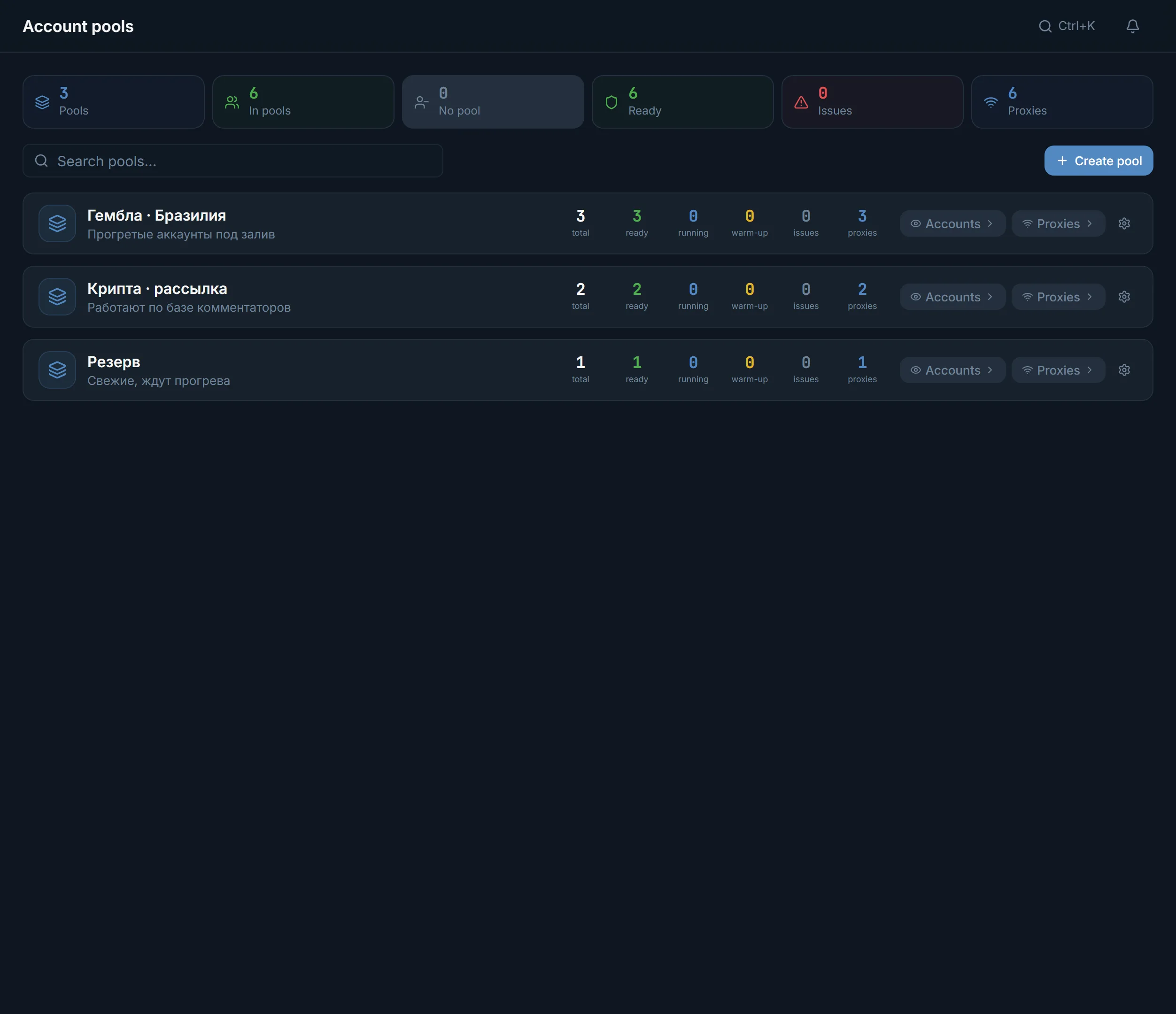
The Import button becomes available once the proxies pass the check through Telegram. Here you can also pick a Pool for the imported accounts and switch on Profile after import.
The window shows how many accounts were created, updated and rejected, and the check result for each one.
| Result | What it means | What the account is good for |
|---|---|---|
| No restrictions | The session opened, no restrictions | Warm-up and any module |
| Temporary spam block until a date | It cannot write to strangers first until that date | Neurocommenting, neurochat, Dialogs |
| Geo spam block | It can write first only to numbers from its own country | Neurocommenting, neurochat, Dialogs |
| Permanent spam block | A restriction with no end date | Neurocommenting, neurochat, Dialogs |
| Frozen | Telegram blocked the account's actions | Nothing until the freeze is lifted |
| Telegram did not accept the session | The login did not open with these files | Nothing; fresh files are needed |
The panel itself will not put a spam-blocked account into mailing or the inviter, where an account writes to a stranger first. Accounts that fail the check still land in the panel, with the reason shown for each.
If the accounts come from a third-party seller, you can run them through the free checker first: it accepts tdata and shows spam block, freeze and the registration date.
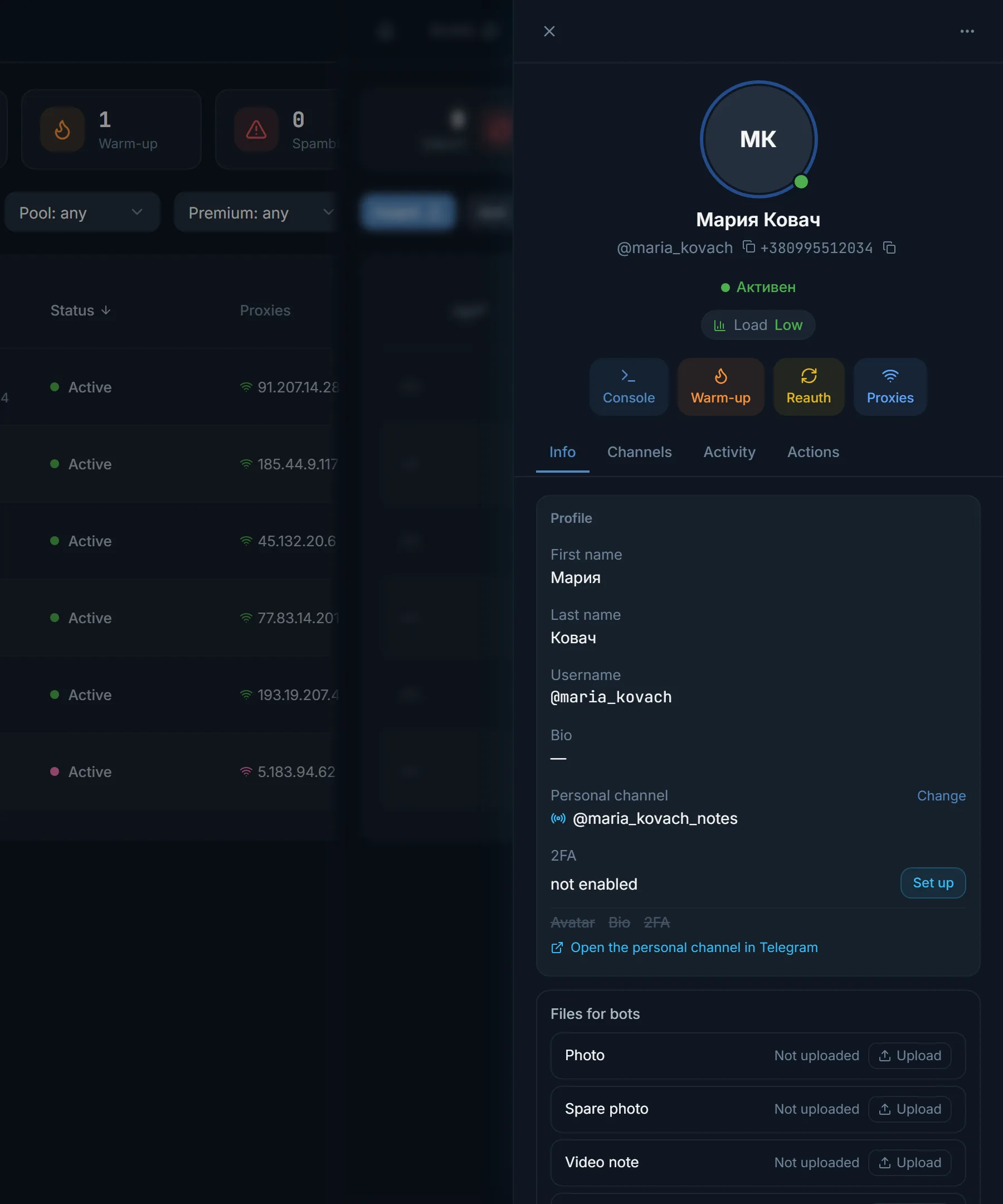
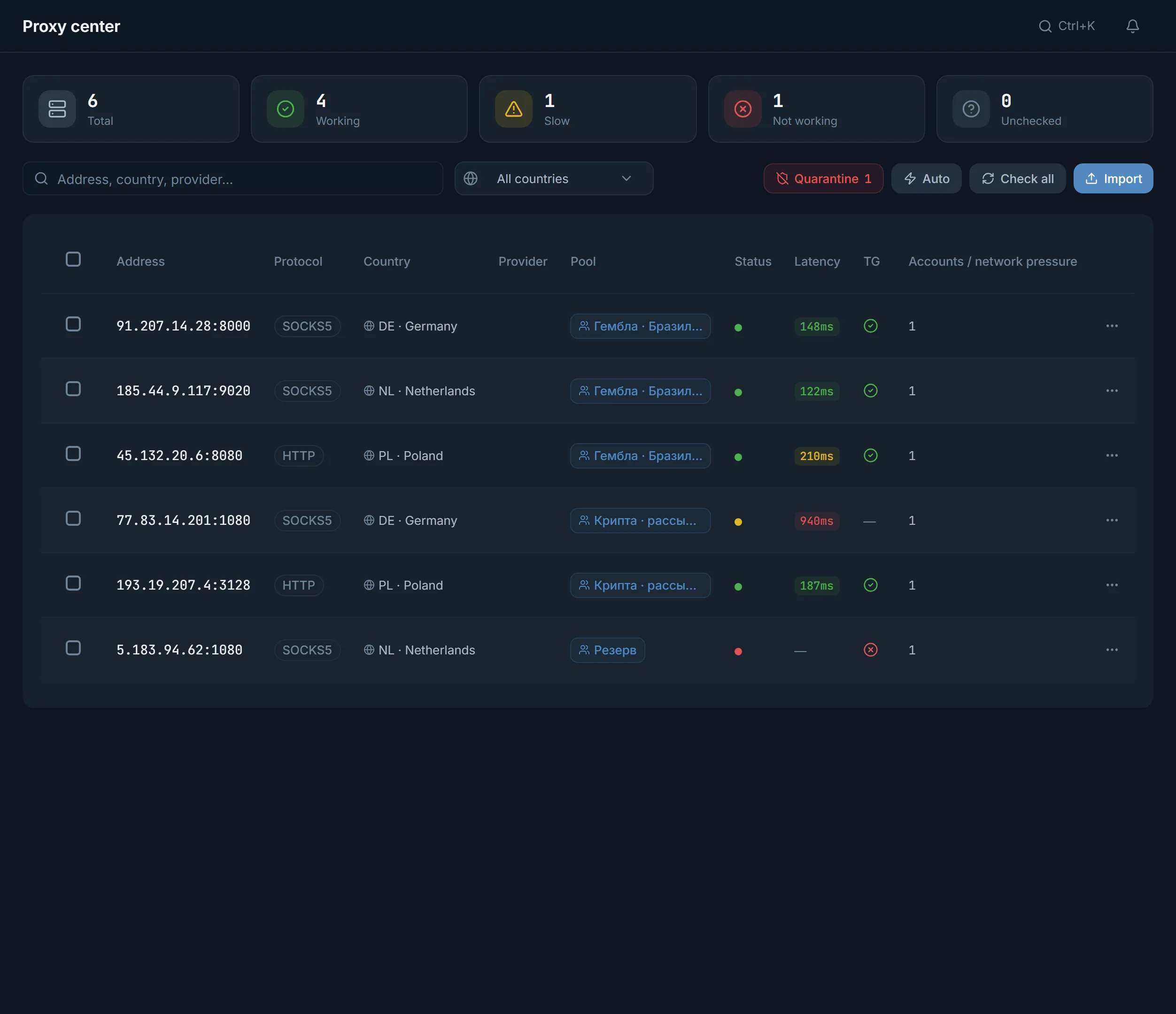
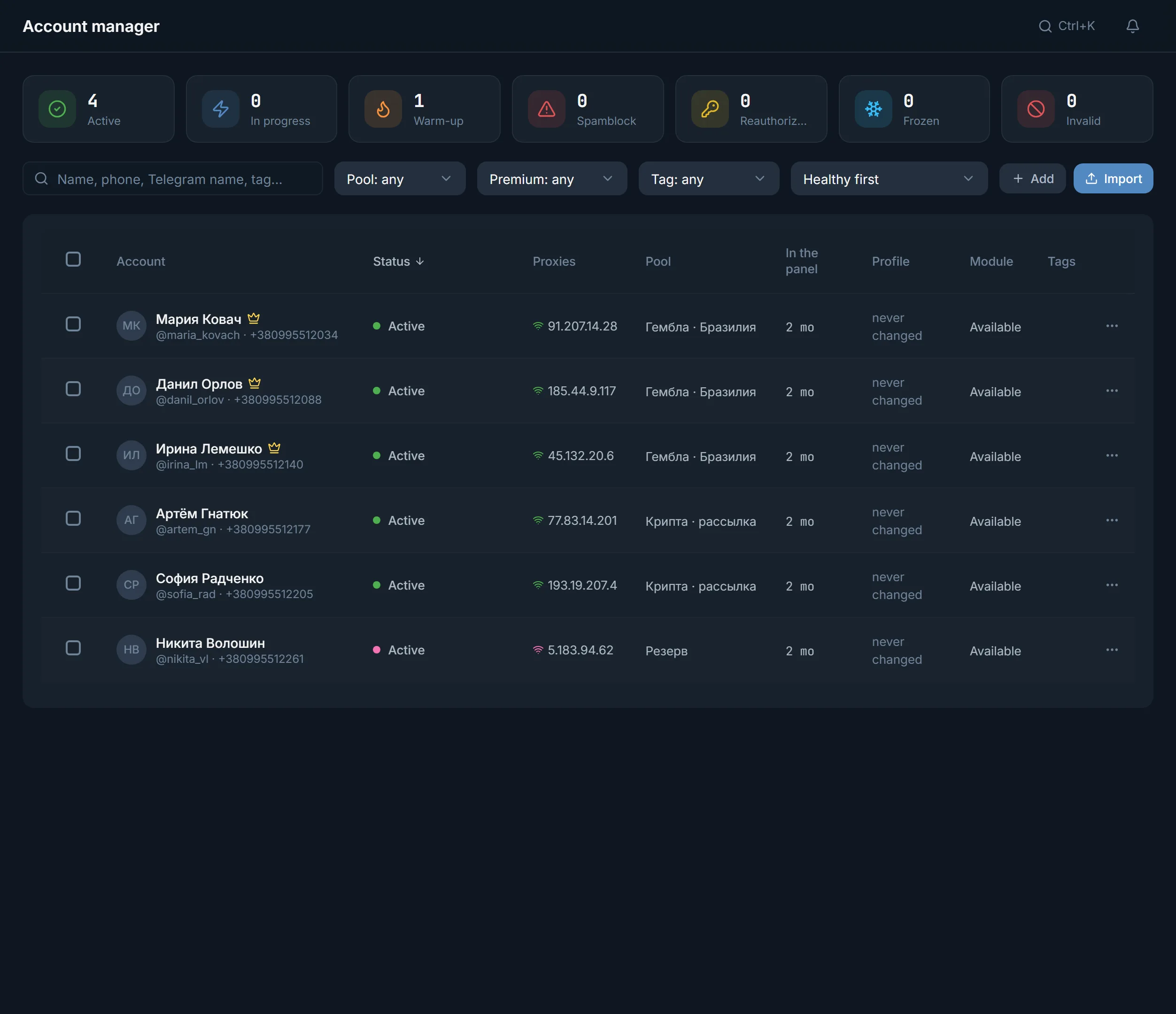
The account appears in the manager's table with its proxy and latency. Its card has the Console, Warm-up, Reauth and Proxy buttons. Fresh accounts usually go to auto warm-up first, and the profile generator fills in empty profiles.
If you need the account's files outside the panel, the bulk Export sessions action gives them back as .session with .json or as tdata. The export goes through the account's own proxy.
Terms on this page
Yes. You upload the folder or archive right in the browser, in the Import accounts window. The panel turns tdata into a session by itself; no Telegram Desktop or converter is needed.
Yes. One ZIP or RAR can hold several accounts' folders, up to 1000 accounts per import. Each account needs its whole tdata folder.
No, the cloud password is not needed for import. If you know it, you can store it in the Account 2FA passwords block. Only a Telegram Desktop local passcode gets in the way: with it, tdata cannot be read.
The panel keeps it for that account and labels it Own proxy from the archive. If that proxy fails the check through Telegram, the import of that account stops.
Yes. The bulk Export sessions action gives .session with .json or tdata, in either direction. The export goes through the account's own proxy.
Up to 10 accounts in the panel during the 3-day trial. The clock starts with the first account you add. A paid plan has no account limit; details on the pricing page.
Read next
More in this section
Other sections
3 days, no card: every module, 3 threads in each, up to 10 accounts. The clock starts with the first account you add.