Inviter: invites into a chat, a channel or your own channel network
Direct invites or invites via admin promotion, rights from your bot or main account only while the run works, a chat passport, dataset memory between runs and a channel network for large datasets.
- Direct invite and invite via admin promotion
- Rights come from your bot or main account, only while the run works
- The panel remembers the dataset: who is already in the chat and who closed invitations
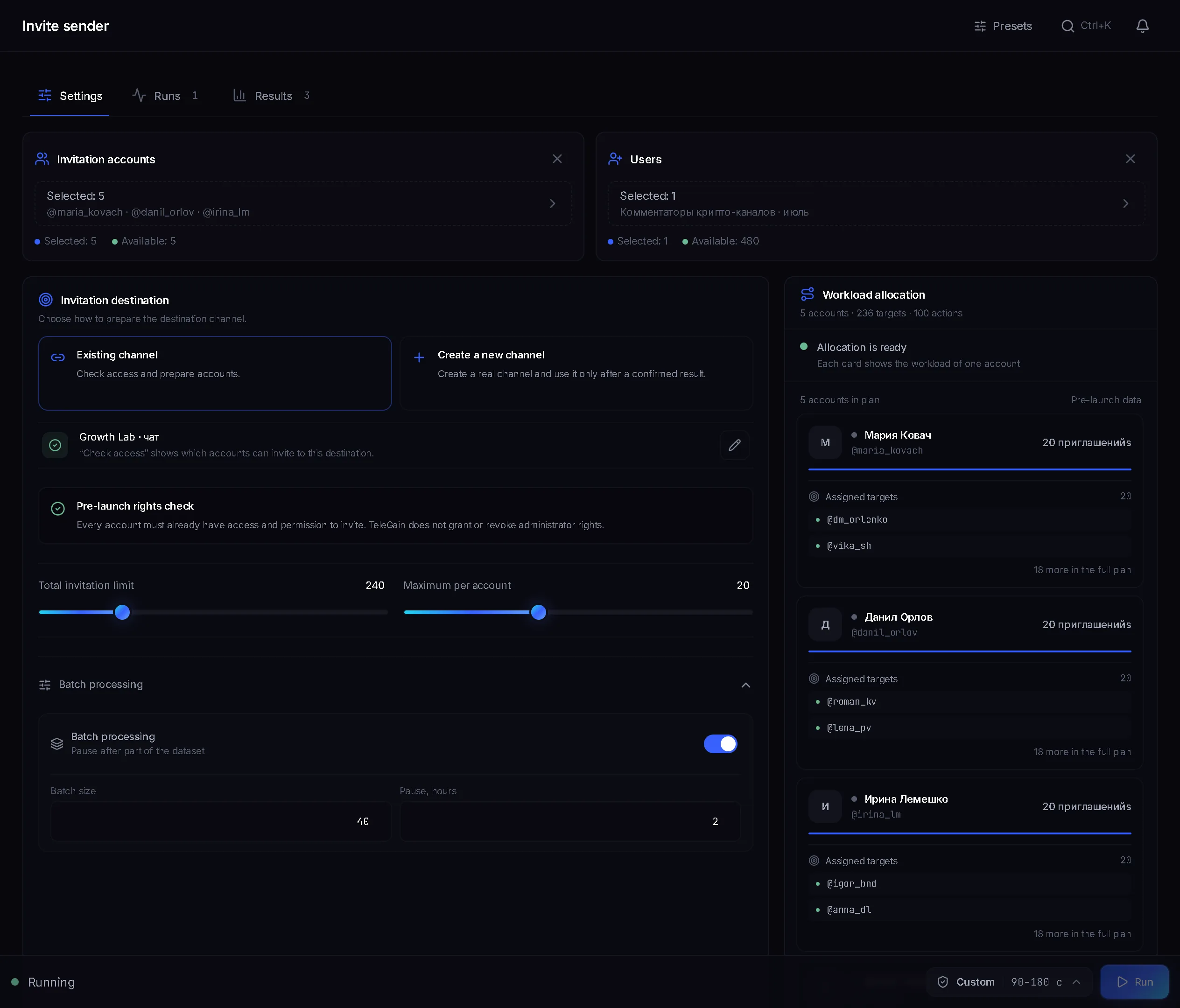
The inviter adds people from your dataset to a chat, a channel or a channel network that the accounts create themselves. Before launch the panel checks the chat and shows its passport: age, members, admin seats and whether it shows up in search. Accounts get the right to invite only while they work, from your bot or main account. You set every number: how many per account per run, how many per day and when to stop. The panel remembers who was already invited and who closed invitations, and does not touch them again.
How to launch
- Choose the inviting accounts and the user dataset.
- Enter the chat and press “Check”: the panel fills in the passport and tells you whether rights are needed and who will grant them.
- Choose the method, set the volume and pace, launch.
What you need before launch
- Warmed-up, rested accounts with proxies. A fresh account is the first to burn out on inviting.
- A dataset of people, not channels: members or commenters from parsing, or your own list of usernames in TXT.
- A prepared chat. The older it is and the more real people it has, the calmer Telegram is about new members. The chat passport shows the age, members and search visibility.
- For invites via admin promotion, or into a chat where only admins can add people: your bot or main account with admin rights.
Where to invite
- “Your chat or channel”: enter the @name or a t.me link and press “Check”.
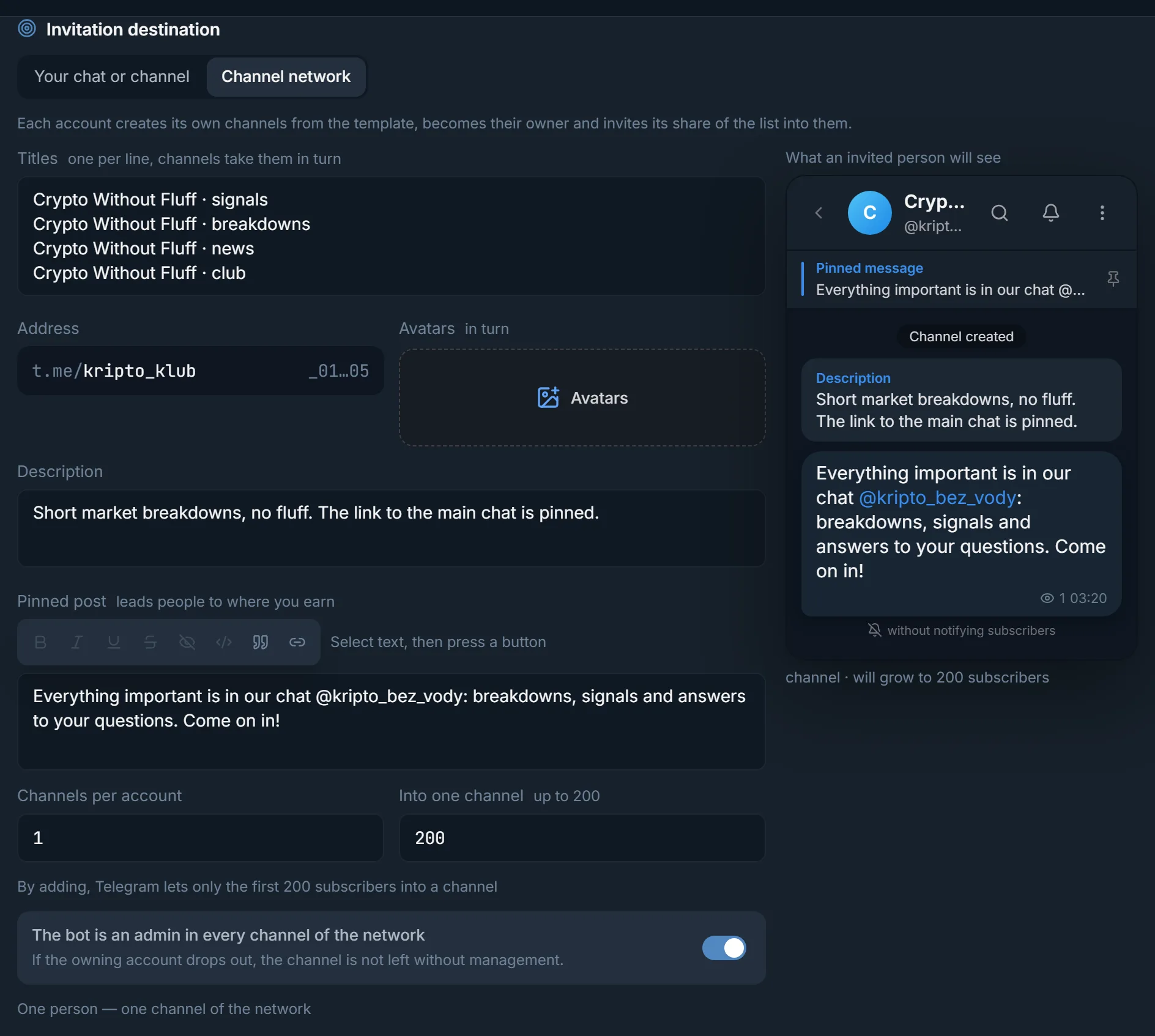
- “Channel network”: the accounts create channels from your template, become their owners and invite their share of the dataset into them. More on this below.
Chat passport
After the check the panel shows facts about the chat. They tell you whether the chat is ready for invites before you launch.
- “Type” and whether the chat has a public address.
- “Members” and what share of the chat you will add per day with the numbers you chose. The usual advice is no more than 5–20% of the chat a day.
- “Age”: when the chat was created. If Telegram does not give the exact creation date, the panel writes “at least” and says where the bound comes from, for example that the group became a supergroup later than it appeared. The usual advice is chats at least two months old.
- “Admins”: how many of the 50 seats are taken and how many more the run needs while it works.
- “Members can add people”: if yes, a direct invite needs no rights.
- “In Telegram search”: whether search finds the chat from an account that is not in it. “Not found” means a shadow ban is possible. A private chat never appears in search, so here it simply says “Private chat”.
Method
- “Direct invite”: the account adds the person to the chat itself. The usual advice is 5–10 a day per account.
- “Invite via admin promotion”: the account promotes the person to admin and demotes them right away, then the panel re-reads whether the person is in the chat. The usual advice is up to 10–15 a day per account.
Who grants the rights
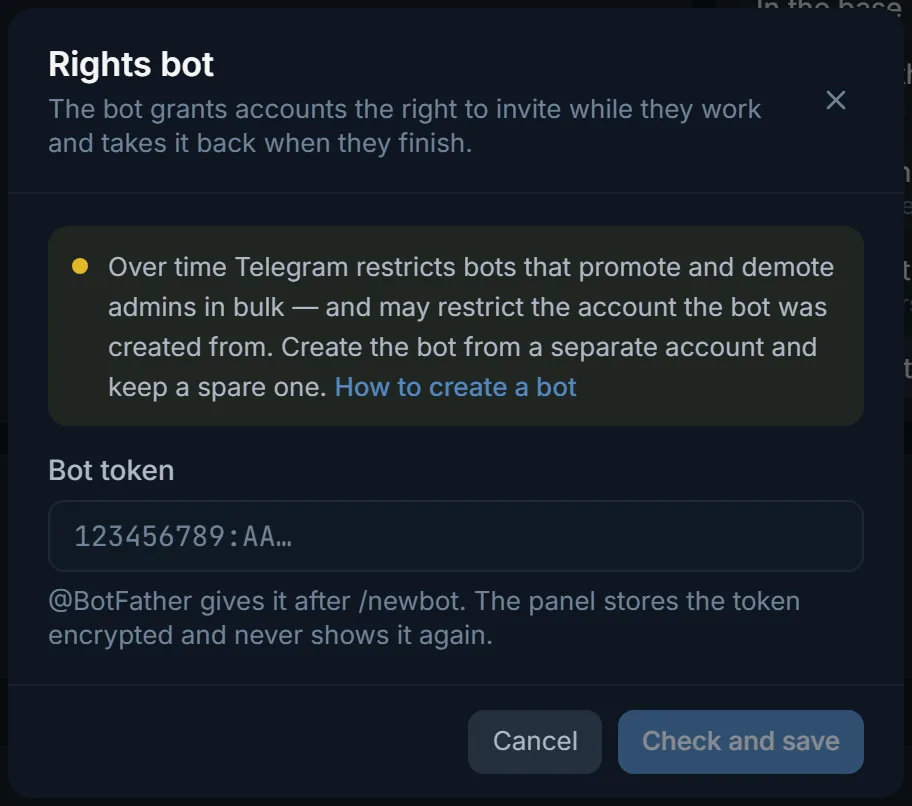
Rights are needed for invites via admin promotion and for chats where members are not allowed to add people. Into an open chat the accounts invite directly with no rights at all, and the panel says so: “No rights needed”.
- “Bot”: your own bot, added by its token from @BotFather. The “Add the bot to the chat” button opens Telegram with the rights already ticked. The bot does not invite anyone itself: it grants an account the right when the account starts work, takes it back when it is done, and cleans up the “… added …” messages.
- “Main account”: one of your accounts, a chat admin with the right to add admins. It grants rights to the others and does not invite itself.
Only the accounts working right now hold rights. A chat has 50 admin seats, and before launch the panel checks whether enough are free. Over time Telegram restricts bots that promote and demote admins in bulk, and may restrict the account the bot was created from. So create the bot from a separate account and keep a spare one.
Volume and pace
- “Total invitation limit”: from 1 to 1000 per run.
- “Per account per run”: how many invites one account makes in this run.
- “Per account per day”: across all runs, the day on the account's clock. An empty field means no limit.
- The speed also sets the pause between invites: “Fast” 30–60 s, “Balanced” 75–150 s, “Careful” 150–300 s.
- If the daily ceiling runs out before the list does, the plan tells you before launch. The targets are not lost: the next run picks them up.
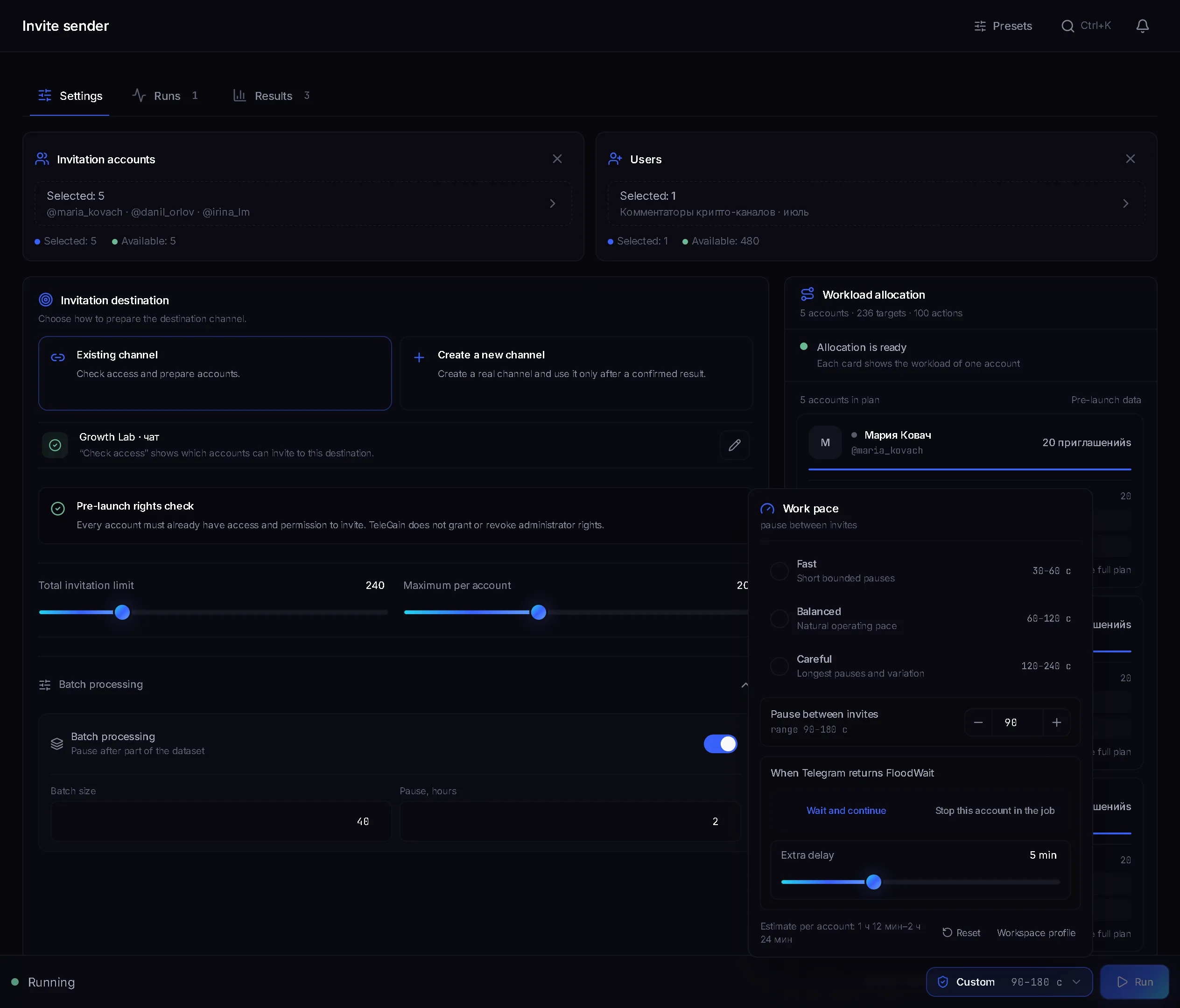
- A Telegram pause (FloodWait): the account either waits and continues, or stops in this job. You can add your own pause on top.
- “Auto-stop” is off by default. Turn it on and the run stops if Telegram has restricted the number of accounts you set. PeerFlood and a lost session count. FloodWait does not: it is a pause and passes on its own.
- “Night pause” from 01:00 to 07:00 on the account's clock.
- “Batch processing”: the account makes the set number of invites and then takes a pause set in hours.
Dataset memory
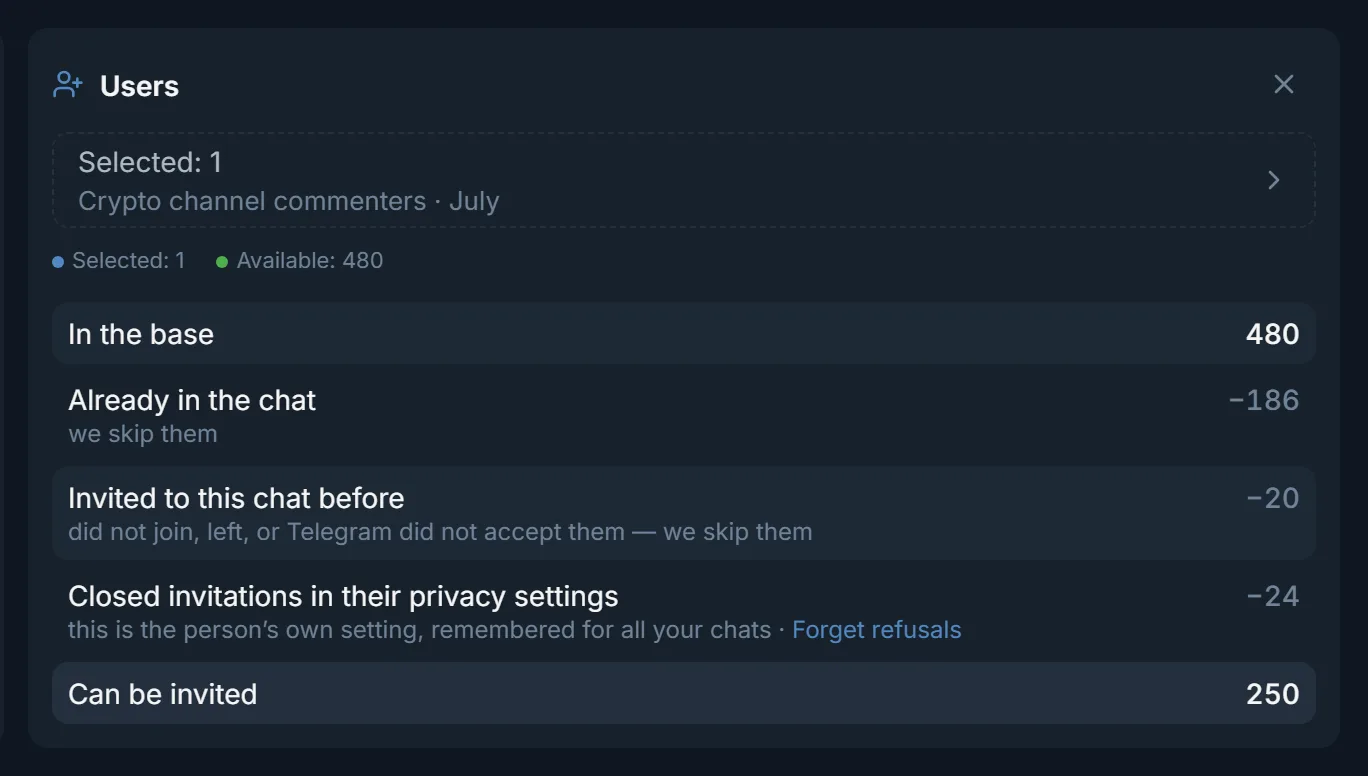
The panel remembers how every invite ended and crosses out people it makes no sense to invite, before it even contacts Telegram. The “Who we skip from the base” block shows this before launch:
- “Already in the chat”: we skip them.
- “Invited to this chat before”: they did not join, left, or Telegram did not accept them. We skip them.
- “Closed invitations in their privacy settings”: this is the person's own setting, and the panel remembers it for all your chats. “Forget refusals” resets this memory.
- “Can be invited”: this is how many people will actually go into the run.
Telegram pauses and stops are not written to memory: such a person gets into the next run. If a run stopped, open it on the “Results” tab and press “Retry errors”: the repeat invites only the people the run did not reach.
Channel network
By adding, Telegram lets only the first 200 subscribers into a channel. For a large dataset the panel builds a network: each account creates its own channels from the template, becomes their owner and invites its share of the dataset into them. No admin rights are needed for this: the owner invites directly.
- The template: “Network name”, channel “Titles” one per line, “Address”, “Avatars”, “Description” and a “Pinned post” that leads people to where you earn.
- “Channels per account” and “Into one channel”, up to 200.
- One person gets into only one channel of the network.
- The bot or the main account becomes an admin in every channel of the network, so a channel is not left without management if the owning account drops out.
- “Top up the network” creates the missing channels.
After the run
- “Delete “… added …” from the chat”: the service messages about adding are erased, while “joined via link” and “left” stay. The toggle is shown if whoever grants the rights has the right to delete messages.
- “Leave the destination chat”: the accounts the panel brought into the chat leave it, in this run and in earlier ones. Accounts that were in the chat before the panel stay.
- The panel removes the temporary rights itself. If removal fails, it retries and says so in the summary.
How to read the results
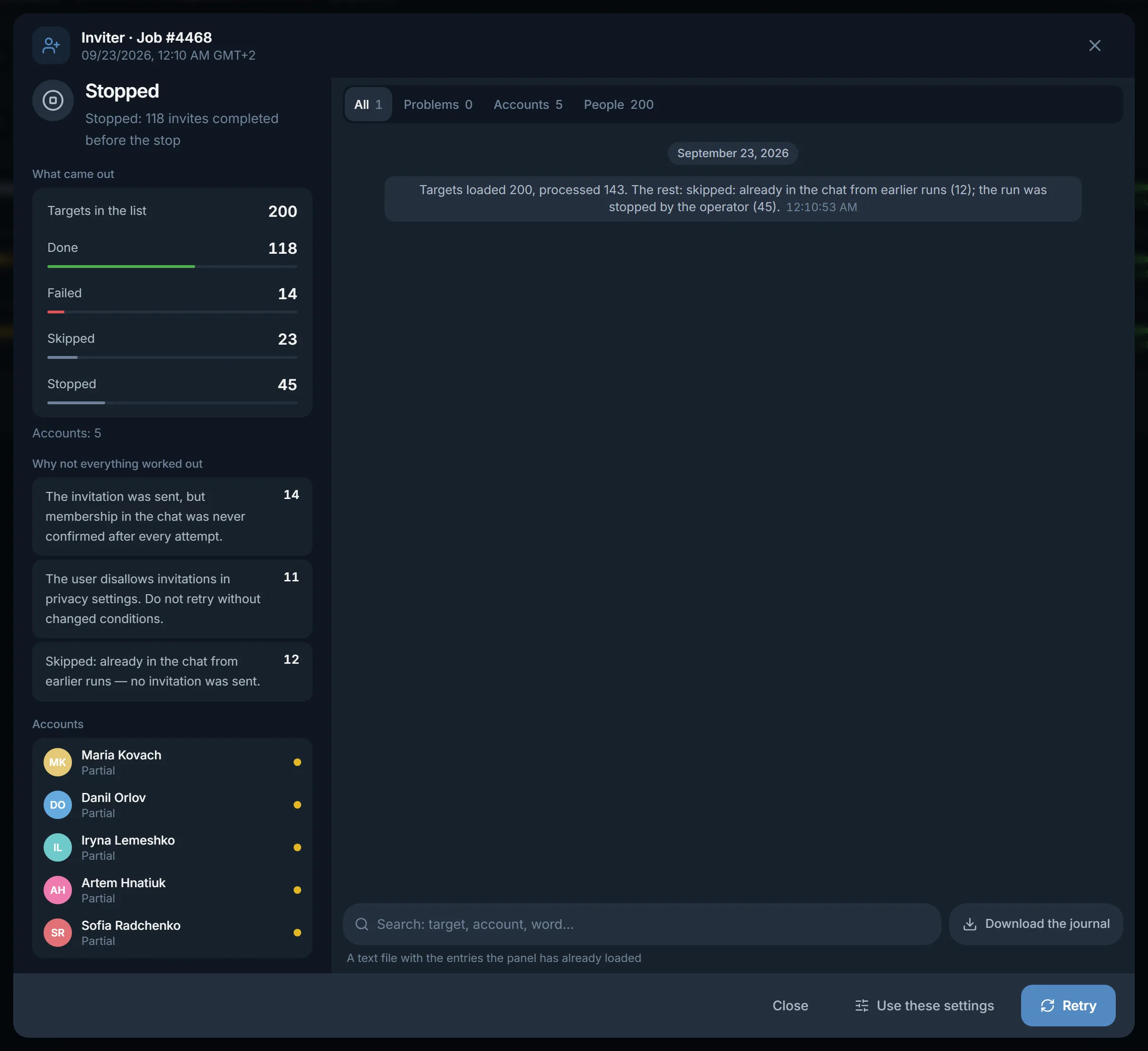
- The summary counts everyone: “Targets loaded N, processed M” and why the rest were not processed.
- Skipped and failed targets are grouped by reason: already in the chat from earlier runs, closed invitations with privacy settings, or membership never confirmed.
- Only a person Telegram confirmed in the chat on a re-check counts as invited.
FAQ
How many invites a day should one account make?
You set the number yourself in “Per account per day”, from 1 to 500. The usual advice is 5–10 a day per account with direct invites and up to 10–15 via admin promotion. An account with no invite history is usually started at 3 a day, adding 2 a week.
Do I need a bot if the chat is mine?
If the chat lets members add people and direct invite is selected, no: the panel will say “No rights needed”. A bot or main account is needed for invites via admin promotion and for chats where only admins can add people.
What about people who closed invitations?
No method gets around this setting of the person, admin promotion included. The panel remembers these people and no longer spends attempts on them in any of your chats. The “Forget refusals” button resets this memory.
Why no more than 200 people in a channel?
That is how Telegram works: only the first 200 subscribers get into a channel by being added. For a large dataset there is the “Channel network”: the accounts create several channels and fill each one up to 200.
Will auto-stop halt the run because of FloodWait?
No. FloodWait is a pause and passes on its own. Auto-stop counts only accounts that Telegram has restricted: PeerFlood and a lost session. It is off by default.
Can I continue a stopped run?
Yes: open the run on the “Results” tab and press “Retry errors”. The repeat invites only the people the run did not reach. It skips those already in the chat and those who closed invitations.
Ready to open the panel?
Review the scenario constraints before launch.
Read next
 Guide
GuideTelegram inviting: how to prepare the chat, where to start and how not to burn your accounts
How to prepare the chat for inviting, how to ramp the volume up week by week, which method to pick, why you need your own rights bot, a channel network instead of one channel, and what to do about people who closed invitations.

Telegram parsers
Build datasets from Telegram: chat and channel members, channels and chats found by keyword, contacts from messages. A ready dataset goes straight to other modules.

Telegram account warmup
Run a warmup profile for selected accounts with observable results.