Telegram account frozen: what to do, how to check and replace it
What a frozen Telegram account is, how it differs from a spam block, how TeleTraff detects it during a check, and what to do next: appeal or replace.
- A freeze is not a spam block: the account is closed entirely, and the only way back is an appeal to Telegram.
- “Check” in the account manager and the free checker both show a freeze, and the panel keeps such an account out of working modules.
- The “Lift spam block” button does not take a freeze. The way out is a manual appeal or “Replace dead accounts”.
A freeze is a Telegram restriction that closes an account entirely: actions are blocked, and the only way back is an appeal. It is not a spam block. In TeleTraff a freeze shows up in “Check” in the account manager and in the free account checker. The panel keeps a frozen account out of tasks, and “Replace dead accounts” puts a new one in its place.
What is a frozen Telegram account, and how is it different from a spam block?
A freeze means Telegram closes the account's actions. In our experience you can still open such an account, but it cannot work until Telegram reviews an appeal. The panel tells a freeze from its neighbours like this:
- “Frozen” — the account is closed entirely, and it is unfrozen by appeal only.
- “Temporary spam block”, “Permanent spam block”, “Geo spam block” — the account cannot message strangers first, but the rest of its work is open. Details are in the guide to spam blocks.
- Deleted or banned — the panel says: “Telegram deleted or banned the account — replace it”.
- Lost session — the panel says “a new login is needed”. “Re-login” fixes that, not an appeal.
What does the owner of a frozen account see?
In the Telegram app, in our experience, the account opens but its actions are blocked, and @SpamBot sends a message about the freeze with an appeal button. In the panel a freeze shows in three places:
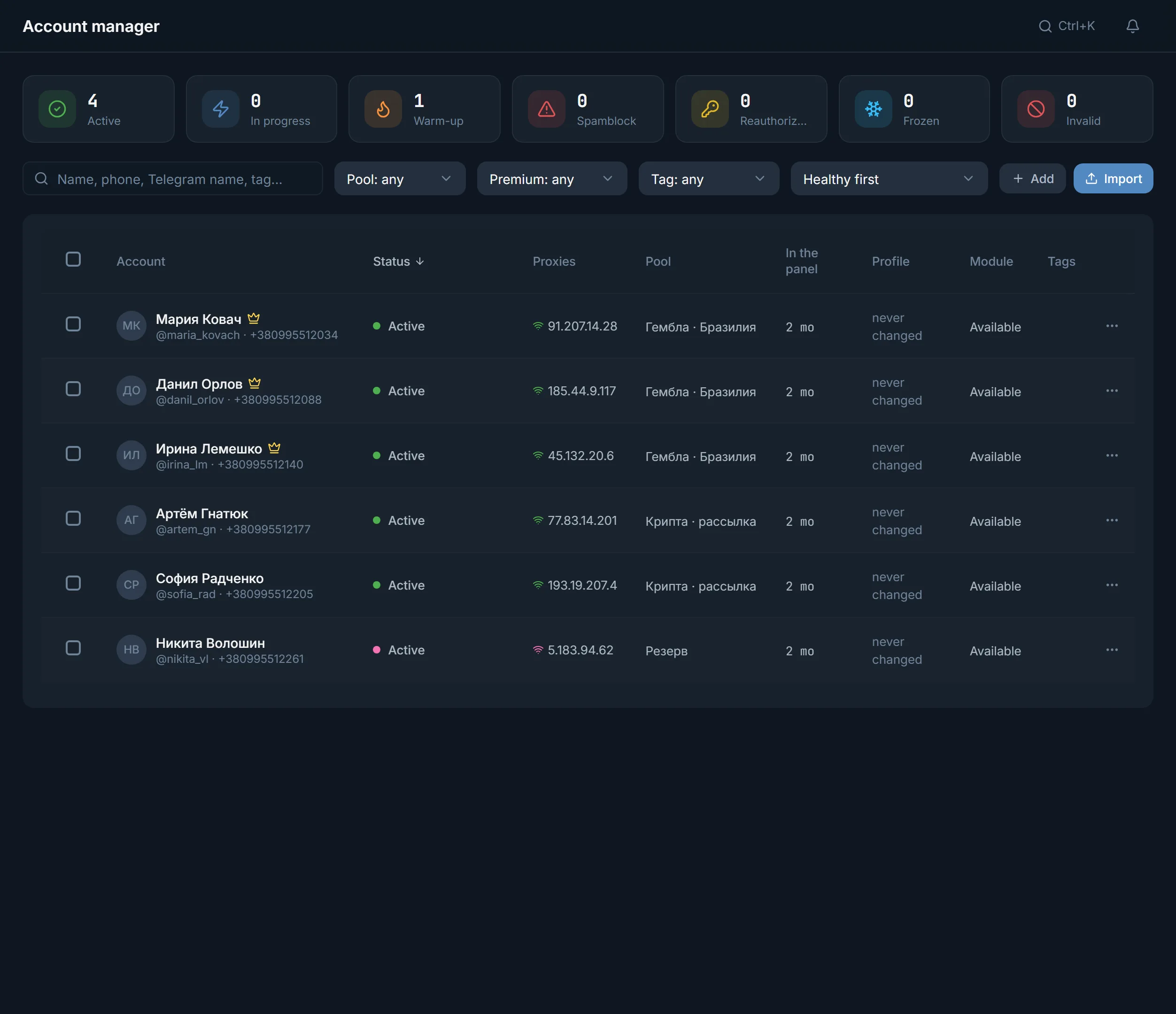
- the account's row in the account manager carries the status “Frozen”;
- the “Frozen” tile above the table counts such accounts. It also counts accounts with a lost session, so “Check” gives the exact cause;
- if the freeze happened during a run, a notification arrives: the account was taken off work and the freeze was recorded in the account manager.
How do I check an account for a freeze?
- 1
Open the account manager
Select the accounts in the account manager and press “Check”.
- 2
Run the check
In the “Account check” window, the “What is checked” list has a “Frozen” item next to “Restrictions”, “FloodWait”, “Authorization” and “SpamBot”. Press “Start check”.
- 3
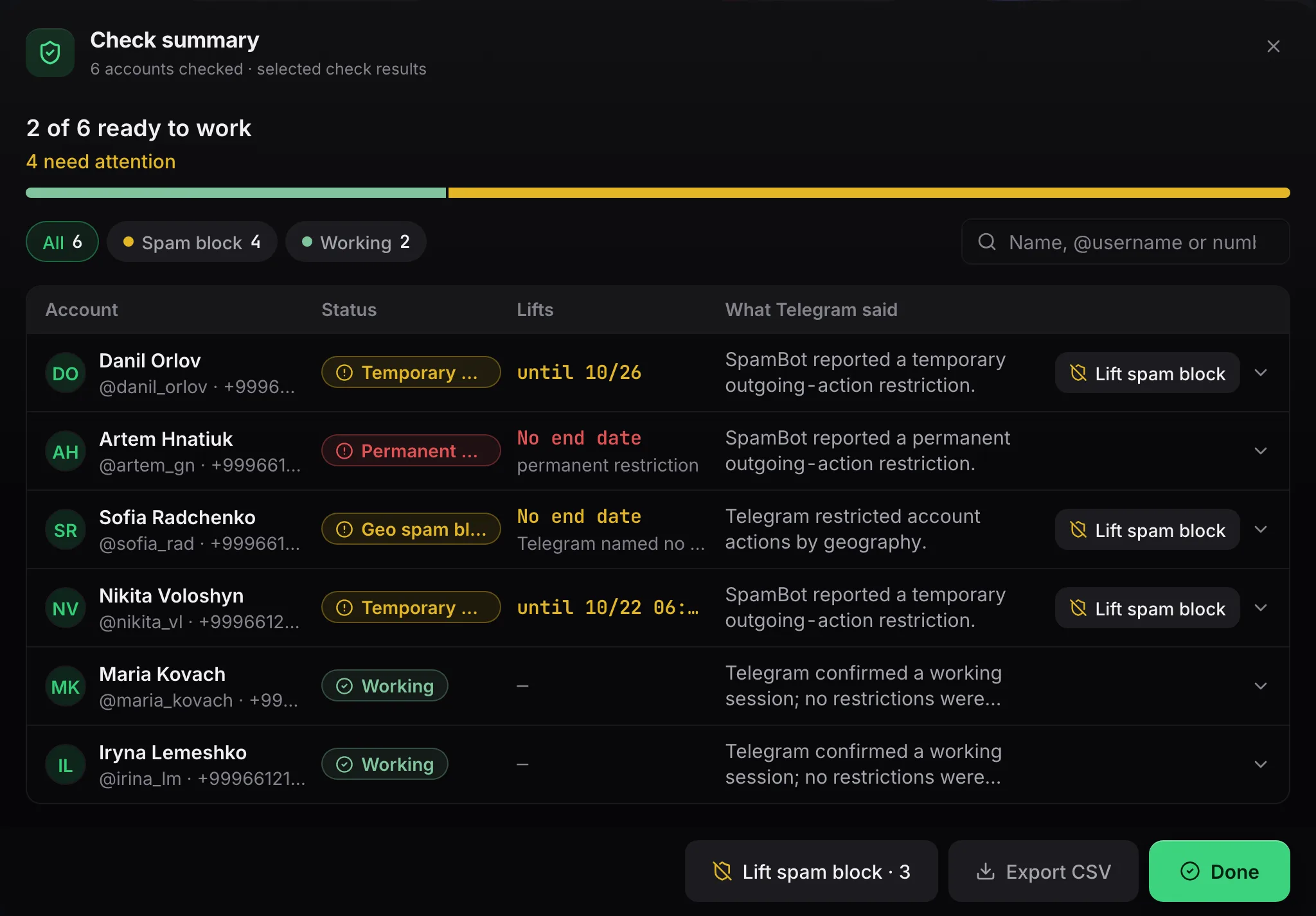
Read the “Check summary”
Frozen accounts are grouped under the “Frozen” filter. The row carries the status “Frozen” and the note “unfreezing is by appeal only”. In the explanation the panel says Telegram rejected the check request, the way it rejects it for frozen accounts, and the check never reached @SpamBot.
- 4
Account not in the panel? Use the free checker
Open the account checker, upload the session and give a proxy. No sign-up. The account's card has a “Freeze” line.
What does the panel do with frozen accounts in tasks?
A frozen account does not enter working modules: mailing, inviting, warm-up, AI commenting and the rest. That is the difference from a spam block: under a spam block the account still sets reactions and views posts, while a frozen one is closed entirely. Only “Check” and “Re-login” stay open, so the status can be rechecked.
- If none of the selected accounts can run, the task does not start. The panel says: “Telegram froze the account — appeal the freeze or replace the account”.
- If some can, the frozen one is skipped, and the target's row says “Account skipped” with the same reason.
- If an account is frozen during a run, the panel takes it off work and records the freeze in the account manager.
- A frozen account's profile cannot be changed: in a bulk profile change the panel reports how many such accounts are among the selected.
What do I do with a frozen account?
- 1
File an appeal with Telegram
The panel does not appeal a freeze, and “Lift spam block” does not take it. In our experience an appeal is filed by hand from the account itself: open @SpamBot and press the appeal button under the freeze message. Telegram then asks questions and wants a captcha in a full browser. Give your real name. Telegram names no review time. For the causes of freezes and the appeal in more detail, see the page on Telegram limits.
- 2
Move tasks to other accounts
While the appeal runs, the frozen account takes no part in tasks. Run mailing or inviting on working accounts. Recheck the frozen one with “Check”: if Telegram has removed the freeze, the status becomes “Working”.
- 3
Replace the account
Select the frozen accounts and choose “More” → “Replace dead accounts”. In the “Account replacement” window, frozen accounts go into the “Replacing” list marked “frozen”, and healthy ones stay under “Left alone”. The panel buys new accounts and puts them on the old accounts' proxies. If the old proxy is dead, it takes one from the pool. If the balance is short, it offers a top-up and finishes the replacement.
- 4
Decide what to do with the old ones
Old accounts stay in the list until you tick “Delete the old accounts after replacing”. A freeze sometimes passes, so you can keep the frozen account and recheck it later. If you need a stock of accounts, see the guide on where to get accounts and proxies.
How do I lower the risk of a freeze?
In our experience, Telegram freezes accounts after spam and fraud reports, after sudden activity on fresh accounts, and after a change of number or login region. A typical arbitrage case: a batch of bought accounts with no warm-up goes straight onto a gambling offer. What you can do in the panel:
- Warm up new accounts before working tasks: auto warm-up and the warm-up plan.
- Give the account a proxy from the same country as its number. Keep proxies in the proxy center.
- Split the mailing volume across several accounts instead of loading one. How to set it up is in the guide to DM mailing.
- Run “Check” on accounts before a launch: a freeze shows up before a task runs into it.
FAQ
How is a freeze different from a spam block?
A spam block forbids the account to message strangers first, and it still does the rest of its work. A freeze closes the account entirely: in the panel it takes part in no working module. A spam block is appealed through the panel or cleared with a captcha, while a freeze goes through an appeal to Telegram only.
Can “Lift spam block” unfreeze an account?
No. The button takes temporary and geo spam blocks. It does not take a permanent spam block or a freeze: the panel says those are done by hand.
How does the panel find a freeze?
Two ways. First: Telegram rejects the check request itself, the way it rejects it for frozen accounts, so the check never reaches @SpamBot. Second: @SpamBot replies that the account is frozen or restricted for violations. Either way the status is “Frozen”.
Will the free checker show a freeze?
Yes, the card will carry “Freeze”. You need a session and a proxy, and no sign-up. The account and the session file are deleted right after the answer.
What happens if an account is frozen in the middle of a run?
The panel takes the account off work, records the freeze in the account manager and sends a notification. In the manager the account will show the status “Frozen”.
Should I delete a frozen account after replacing it?
No. Old accounts stay in the list until you tick “Delete the old accounts after replacing”. A freeze sometimes passes, and then the account can go back to work after a “Check”.
Ready to open the panel?
Review the scenario constraints before launch.
Read next

Account manager
The workspace for all your accounts: tdata and session import, live statuses, a card for every account, and bulk actions over hundreds of accounts at once.
 Guide
Telegram spam block: what to do, how to check and recover an account
How to tell the spam block type via @SpamBot, which work TeleTraff keeps a restricted account out of, and what to do with temporary, geo and permanent blocks.
 Guide
Where do you get accounts and proxies?
Buy Telegram accounts and proxies from connected providers inside the panel: catalog, seller profile, payment and import.