Telegram spam block: what to do, how to check and recover an account
How to tell the spam block type via @SpamBot, which work TeleTraff keeps a restricted account out of, and what to do with temporary, geo and permanent blocks.
- @SpamBot tells you the block type: temporary, permanent or geo. The type decides your next step.
- The panel keeps a spam-blocked account out of mailing, inviting and «First message», but it can still do views, reactions and comments.
- A temporary or geo block can go to appeal with «Remove spamblock». A permanent one is appealed by hand through a captcha.
A spam block is a Telegram restriction: the account can't message strangers first. What to do depends on the type: appeal a temporary or geo block, or fix a geo block by changing the proxy; for a permanent one, solve the captcha by hand or move the account to work that needs no cold messages. In TeleTraff all of this happens in the account manager: «Check» shows the block type and «Remove spamblock» files the appeal.
What is a spam block in Telegram?
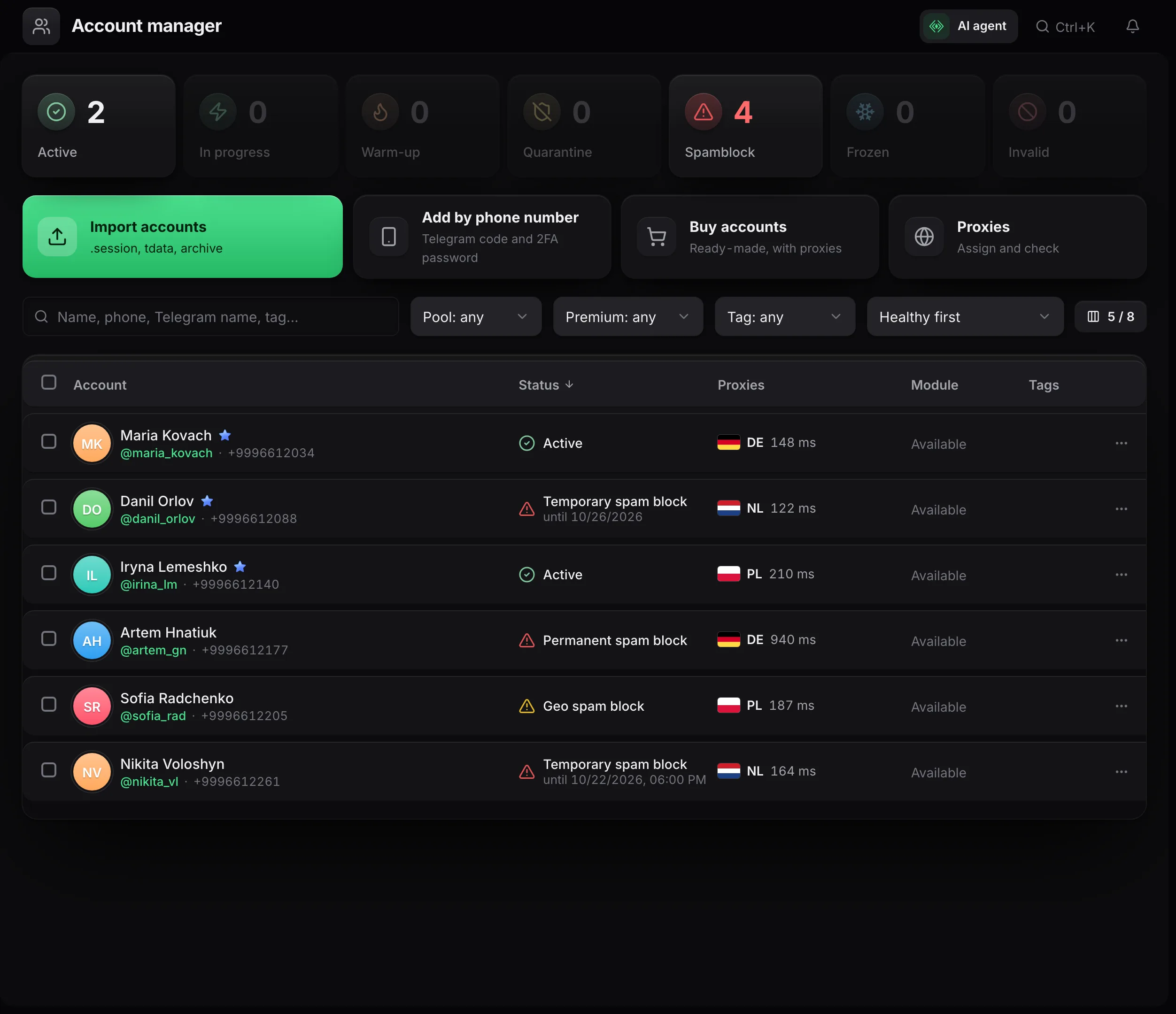
It's a restriction Telegram puts on an account. The account can still reply to people who wrote first, but it can't start a conversation with a stranger. The official @SpamBot tells you which kind it is. The panel shows it as one of these statuses:
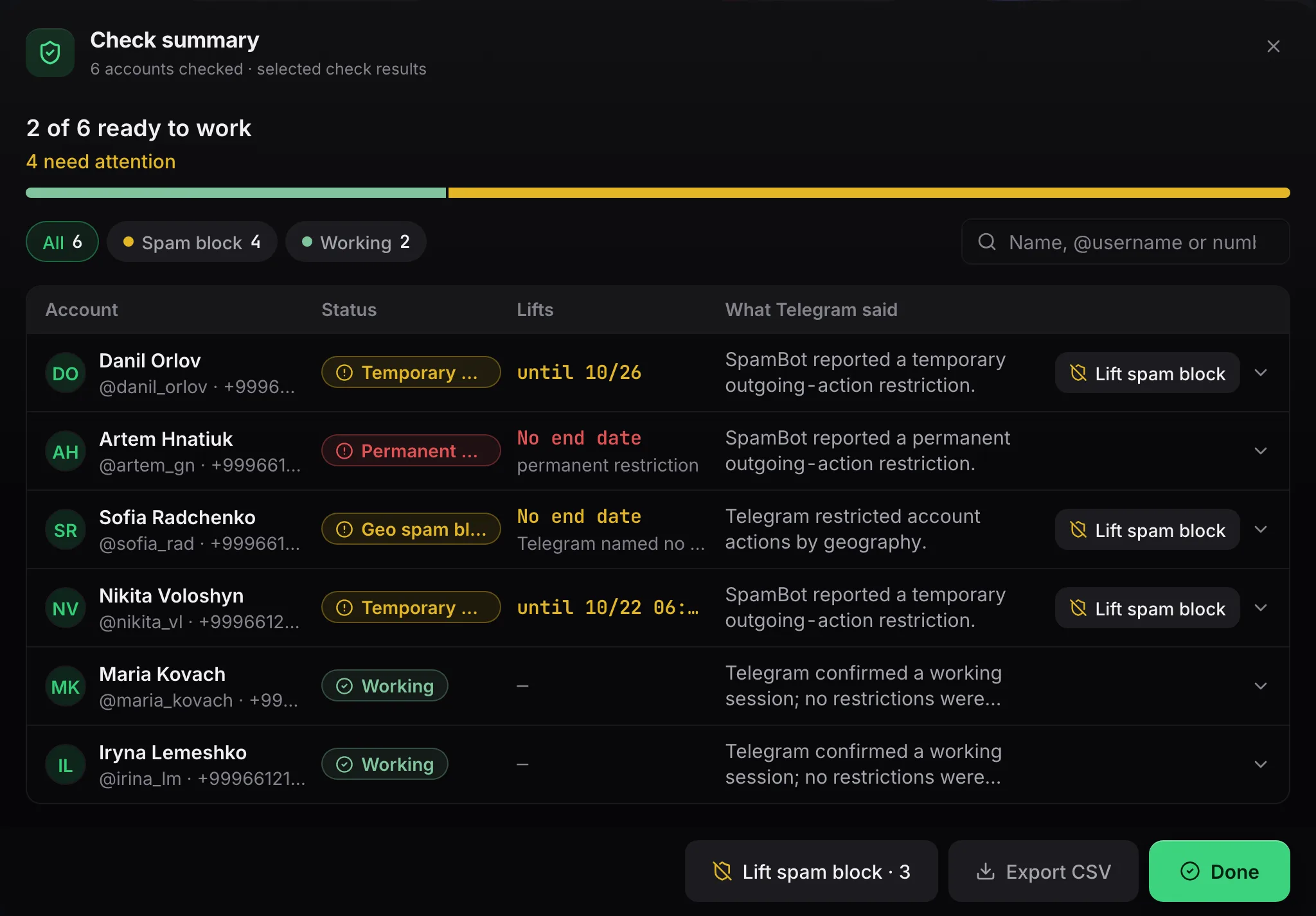
- «Temporary spam block» — the restriction has an end date. If Telegram gave none, the panel says so: «Telegram named no date».
- «Permanent spam block» — there is no date; the check results say «No end date».
- «Geo spam block» — Telegram restricted the account because the number's country and the connection's country don't match.
- «Frozen» — not a spam block but a freeze; unfreezing only goes through an appeal.
- «FloodWait» — not a spam block either: Telegram asks you to wait before the next action, and the pause ends on its own.
Why does an account get spam-blocked?
In our experience, a spam block most often follows reports: someone gets a cold message and taps «Spam». The risk is higher for fresh accounts with no history, for accounts that message strangers right after purchase, and for accounts whose proxy is in a different country from the number. A typical case in affiliate marketing: a gambling offer sent to a random list from just-bought accounts with no warm-up.
How do I check an account for a spam block?
- 1
Open the account manager
In the account manager, the «Spam block» tile above the table shows how many accounts are restricted right now. Select the accounts you want to check.
- 2
Click «Check»
The «Account check» window opens. The base items are «Restrictions», «FloodWait», «Freeze» and «Authorization». Asking @SpamBot is already part of the base check.
- 3
Ask for a fresh answer if you need one
The panel keeps @SpamBot's answer for an hour so it doesn't ping the bot on every check. Need an answer right now? Tick «Ask @SpamBot again instead of waiting an hour».
- 4
Read the result
In «Check summary» every account gets a status: «Working», «Temporary spam block», «Permanent spam block», «Geo spam block» or «Frozen». The «What Telegram said» column shows the date or «No end date». «No answer» means the bot stayed silent: run the check again with «Ask @SpamBot again» ticked.
Accounts not in the panel yet?
The free account checker needs no sign-up: upload a session and a proxy, and it asks @SpamBot and shows the block type.
What does the panel do with a spam-blocked account?
TeleTraff won't give a restricted account any work that means writing first. Such an account stays out of:
Everything else stays open: masslooking, mass reactions, neurocommenting, parsers, warm-up and the console. In «Dialogs» it answers incoming messages but doesn't start new conversations. Once a temporary block's date passes, the panel stops counting the account as restricted on its own. If Telegram gave no date, run «Check» again.
What do I do about a temporary or geo spam block?
- 1
For a geo block, change the proxy
The panel's advice: assign a proxy from the number's country and check the account again. Keep proxies for the right countries in the proxy center.
- 2
File an appeal
Select the accounts in the account manager and choose «More» → «Remove spamblock». The panel asks @SpamBot and, if the restriction can be appealed, files the appeal. The report says «appeal submitted» or «appeal not submitted» with the reason. The captcha needs a SOCKS5 or HTTP(S) proxy on the account.
- 3
Move the account to other work
While the restriction holds, put the account on masslooking, reactions or neurocommenting. Hand the crypto or info-product mailing to clean accounts. Once the date from Telegram's answer passes, run «Check» again.
What do I do about a permanent spam block?
«Remove spamblock» doesn't take permanent blocks, and it doesn't take frozen accounts either. The panel says it plainly: the account is no longer fit for mailing and invites. Keep it for views and reactions, or replace it.
- 1
Solve the captcha by hand
Open the account's «Console», find @SpamBot through «Telegram search» and file the appeal with the captcha yourself.
- 2
Pin the account to work without cold messages
A module only offers accounts of its own role, so «Role» lets you take the account out of cold work. No module takes the «Reserve» role, which is handy while you decide what to do with the account.
- 3
Replace the account
«Replace dead accounts» buys new accounts in place of frozen ones and ones with a dead session, and puts them on the old accounts' proxies. Spam-blocked accounts are included only if you tick «Replace spam-blocked accounts too».
How do I lower the chance of a spam block?
- Warm up new accounts before cold work: auto warm-up and the warm-up plan.
- Give each account a proxy from the same country as its number.
- Split a mailing across several accounts instead of loading one. How to set it up: the DM mailing guide.
- Build your list from niche chats: someone from a crypto chat is less likely to tap «Spam» on a crypto offer than a random recipient.
- Buy accounts where their history is known: where to get accounts and proxies.
- Check accounts before you launch a task: «Check» shows a spam block before your mailing runs into it.
FAQ
How often does the panel ask @SpamBot?
The panel keeps @SpamBot's answer for an hour. A repeat check within that hour reuses the stored answer. To ask the bot right away, tick «Ask @SpamBot again instead of waiting an hour» in the check window.
What's the difference between a temporary and a permanent spam block?
For a temporary block Telegram gives an end date; a permanent one has no date, and the results say «No end date». A temporary block can go to appeal with «Remove spamblock»; a permanent one only by hand, through the captcha in @SpamBot.
Why doesn't a spam-blocked account get into mailings?
The panel keeps restricted accounts out of mailing, inviting and «First message», since those mean writing first. For views, reactions, comments and replies in «Dialogs» the account stays available.
What does the «No answer» status mean?
@SpamBot didn't reply during the check, so the block type is unknown. Run the check again with «Ask @SpamBot again» ticked.
Can I take an account out of quarantine by hand?
Yes. The row menu and «More» both have «Quarantine» and «Return to work». «Return to work» also releases a quarantine the panel set itself. It doesn't touch FloodWait, which ends on its own.
When can the account go back to mailing?
Once the date from @SpamBot's answer passes, the panel stops counting the account as restricted. If Telegram gave no date, run «Check»: a «Working» status means the account is fit for cold work again.
Ready to open the panel?
Review the scenario constraints before launch.
Read next

Account manager
The workspace for all your accounts: tdata and session import, live statuses, a card for every account, and bulk actions over hundreds of accounts at once.
 Guide
Warming up Telegram accounts: from the purchase to the first real run
Which accounts to buy and which to skip, why an account should rest for a day, and how to pick a warmup programme in TeleTraff.
 Guide
Where do you get accounts and proxies?
Buy Telegram accounts and proxies from connected providers inside the panel: catalog, seller profile, payment and import.