How to Find Telegram Chats and Channels by Topic
Where to look for topical Telegram channels and chats: search, similar channels, link lists and the TeleTraff database filtered by language, country and size.
- Four sources: Telegram search, similar channels, link lists and the database
- Filters for topic, language, country, size and open comments
- What you find is saved as a set and is ready for the modules
To find Telegram chats and channels by topic, collect sources from several places: Telegram search, similar channels, link lists and a catalog with filters. In TeleTraff the catalog is the "Database search" tab of the parsers module: you set topic, language, country and size as filters, and the result is saved as a set for commenting and mailings. You can browse the public version of the catalog without signing in on the Telegram database page.
What are the ways to find Telegram chats and channels by topic?
- Telegram search. Type a word from your topic, for example "slots" or "trading". In our experience the results are short, with channels, chats and bots mixed together.
- Similar channels. Telegram channels have a block of similar channels. It is an easy way to walk from one channel to the next. In the "Channels" parser the "Similar" mode does the same.
- Link lists. Picks from colleagues, links from other people's posts, your own file. In the parsers you paste them on the "Manual input" tab or load them through "Import file".
- The TeleTraff database. A catalog of channels and chats with topic, language, country, size and access flags. You do not guess search words, you set filters.
How do you find channels and chats by topic in the TeleTraff database?
- 1
Open "Database search"
It is the first tab in the parsers section. Choose what you are looking for: "Channels" or "Chats". Their filters differ, because channels have subscribers and comments, while chats have members and the right to post.
- 2
Set the topic
In the "What it is about" block pick a "Topic" from the list, for example "Crypto", "Gambling", "Marketing", "Business" or "Courses". The "Words in title or description" field makes it sharper: type a word that must appear. The "Exclude words" field removes the unwanted ones: comma-separated words.
- 3
Narrow by language and country
Choose "Language" and "Country". Use "Exclude countries" to drop countries you do not need.
- 4
Set size and freshness
Fill "Subscribers" from and to. For chats the field is called "Members". Separately, limit how old the last post may be: a channel that has gone quiet is of no use.
- 5
Check the results
Above the table the "Found" line shows how many channels or chats match the filters. Sort the table "by subscribers", "by ER" or "by activity" and scan the top. If nothing comes up, the panel suggests loosening the filters.
How do you filter channels and chats by language, country and size?
- "Language" and "Country": pick from a list. "Exclude countries" removes the unneeded ones when the topic is international.
- "Subscribers" for channels and "Members" for chats: bounds from and to. Start with the lower bound only.
- "Last post within" for channels and "Last message within" for chats: options for a day, a week and a month. It cuts off abandoned places.
- Channels also have "ER from, %", "Reach from" and "Posts per day, from". They show how alive a channel is.
- The "For me" block: "Hide already taken" removes what you have already saved as a set or exported. "Without my refusals" removes your blacklist, your accounts' blocks and places your runs could not post to. "Less spammed" removes the sources that are busiest right now.
How do you find channels with open comments and chats where you can post?
- For channels: in "Comments" choose "Open" and add "Comments per post, from", so there is real conversation under the posts.
- For chats: in "Posting" choose "Allowed". This keeps the chats where your account can write.
- "Entry": "Open" or "By request". An admin lets you into chats with requests, so take open ones for a quick start.
- "Member list is open" matters if a parser will collect people from the chat later.
By task
For neurocommenting take channels with open comments. For neurochatting and mailing to chats take chats where "Posting" is set to "Allowed". To collect people take chats with an open member list.
What if your topic is not in the database?
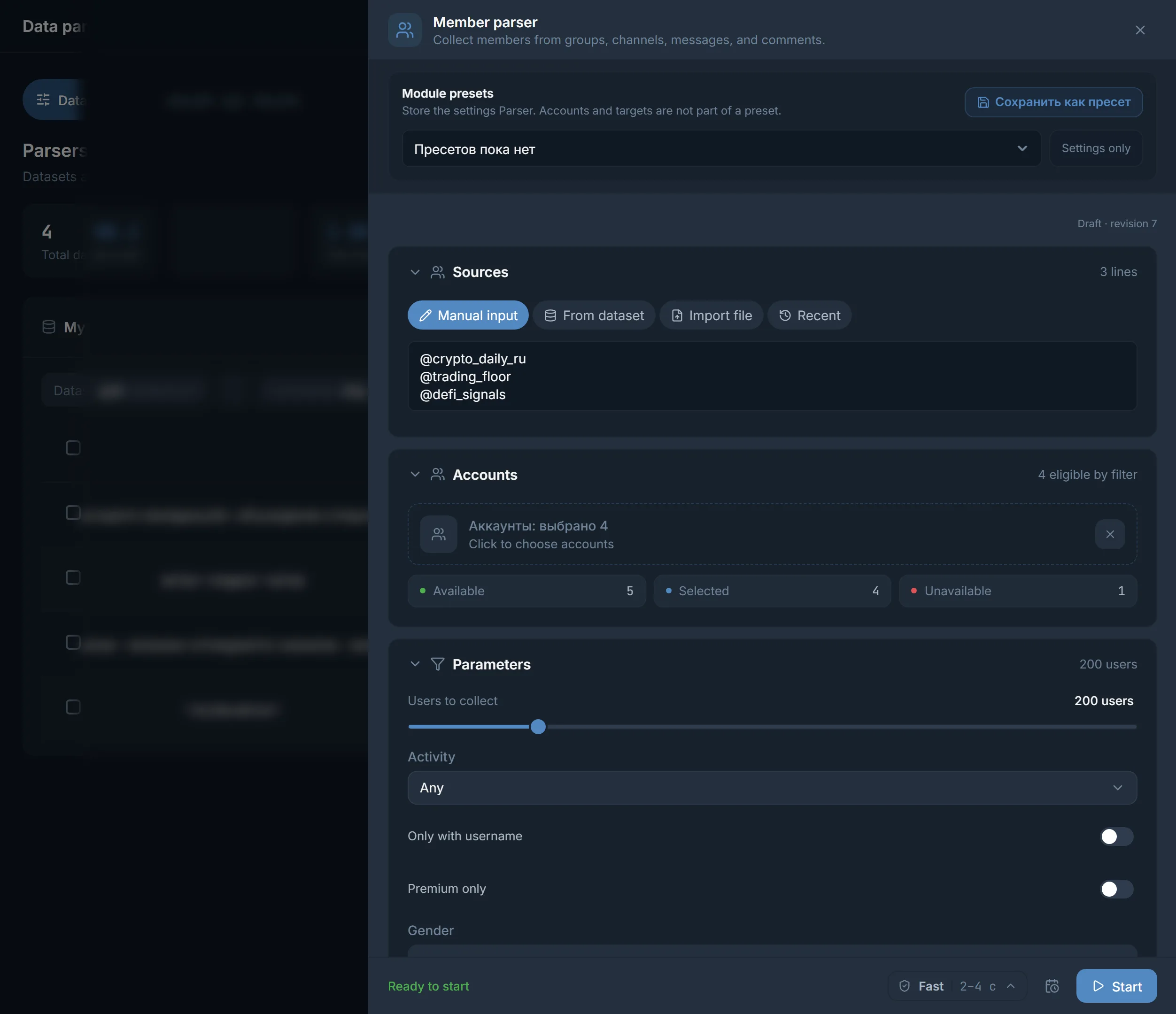
Collect sources with a parser. The parsers module has "Channels" and "Chats" parsers: they search through Telegram and put the result into your database. The "Channels" parser has three collection modes:
- "Search": Telegram keyword search only.
- "Similar": similar channels only, starting from your links or a saved database. You set the links in "Seed sources for similar".
- "Deep": search and similar together. Wider reach, more time.
A table of every search method and its limits: searching channels and groups.
For international topics turn on "Filter by language". For commenting tick "Only with open comments" and set "Min. comments per post".
How do you save what you found for parsers, commenting and mailings?
- 1
Save a set
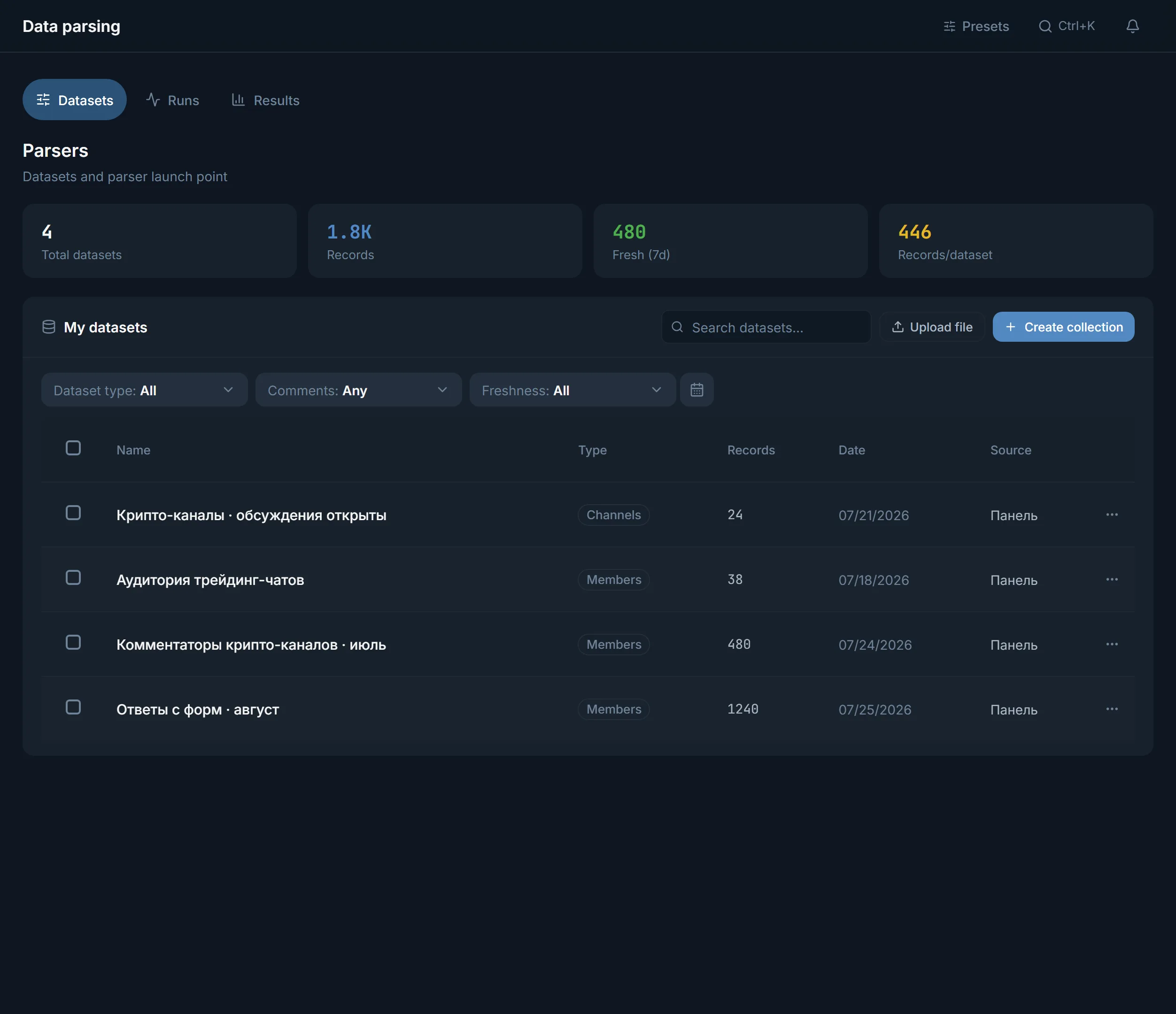
Above the table click "Save as a set". To take only some rows, tick them and click "Save selected as a set". The set appears in the modules' target picker right away.
- 2
Or export a file
Click "Export". In the "Database export" window choose "How many rows" and "Format": Excel (XLSX) or CSV. The window shows how many rows are left this month.
- 3
Hand the set to a module
A set of channels is taken by neurocommenting, mass reactions and warmup. A set of chats is taken by neurochatting and mailing. Inside the parsers you pick a set on the "From dataset" tab.
Once the chats are found, the "Members" parser collects people from them. That is a separate guide: "How to parse a Telegram audience". A database of people is then taken by inviting.
What should you look for in your vertical?
- Gambling: the "Gambling" topic, channels with open comments, chats where you can post.
- Crypto: the "Crypto" topic. Languages are mixed, so set "Language" and "Country" right away.
- Traffic arbitrage: the "Marketing" and "Business" topics, with words like "arbitrage" or "buying" in the title and description field.
- Info products: the "Courses" and "Education" topics, chats of students and channels of bloggers in your niche.
- Services: "Country" plus the city in the "Words in title or description" field. For services, geography matters more than size.
FAQ
Where can I find Telegram chats by topic?
In four places: Telegram search, the block of similar channels, link lists and the database. In TeleTraff the database is the "Database search" tab in the parsers: you pick topic, language, country and size, and the table shows matching channels or chats.
How do I find only channels with open comments?
On the "Channels" tab of "Database search" set "Comments: Open" and fill "Comments per post, from". In the "Channels" parser the same is done by "Only with open comments" and "Min. comments per post".
How do I find chats where I can post?
On the "Chats" tab choose "Posting: Allowed". If you need quick entry, add "Entry: Open".
Can I search by country and language?
Yes. The "What it is about" block has "Language", "Country" and "Exclude countries". In the "Channels" and "Chats" parsers language is switched on with "Filter by language".
How do I feed found channels into neurocommenting?
Click "Save as a set". The set appears in the modules' target picker, and in neurocommenting you choose it as the source.
What does "Hide already taken" mean?
The filter removes channels and chats you have already saved as a set or exported. New runs then do not get the same places again.
In what format is the database exported?
Excel (XLSX) or CSV. In the "Database export" window you choose "How many rows" and "Format", and below you see how many rows are left this month.
Ready to open the panel?
Review the scenario constraints before launch.
Read next

Telegram parsers
Build datasets from Telegram: chat and channel members, channels and chats found by keyword, contacts from messages. A ready dataset goes straight to other modules.
 Guide
How to scrape a Telegram audience: members, authors, commenters
How to collect an audience from Telegram chats and channels: what the parser can see, how to keep only people who post, and where to send the dataset.

Telegram AI commenting
Configure comments for new posts with selected accounts, sources, and a prompt.