How to Manage Multiple Telegram Accounts from One Panel
Dozens of Telegram accounts without the chaos: import, pools with their own proxies, profiles, two-factor protection, status checks and jobs run on a whole group.
- Import, statuses and bulk actions for every account live in one table of the account manager.
- A pool keeps projects apart: each has its own accounts and proxies, and the panel can swap a failed address by itself.
- Jobs launch on a whole group: on the 'Pools' tab one click ticks every ready account of a pool.
Several Telegram accounts are easier to run in a web panel than in the apps: you load them in a batch, sort them by project and proxy, check them with one button and launch jobs on them. In TeleTraff the account manager, pools and the proxy center do this. Below is the whole path step by step, from import to launching on a group.
Why don't the official apps scale to many accounts?
In our experience, the app is built for one person with a couple of accounts. Every extra account is a separate sign-in with separate proxy settings, and you only see that an account is restricted when it stops sending. With dozens of accounts, for an arbitrage offer, a gambling project, a crypto channel or clients, the setup turns into manual bookkeeping: who is on which proxy, who is warmed up, who dropped. A web panel gathers all of it into one table and makes actions bulk.
How do I load many accounts at once?
- 1
Open the import
In the account manager click 'Import'. The window asks 'How would you like to add accounts?' and offers 'Phone number and Telegram code', 'Ready-made accounts' or 'Files or archive'.
- 2
Choose proxies
The 'Proxies' block has three modes: 'Automatically' takes addresses from the pool, 'Pick proxies' lets you tick the ones you want, 'Add new' accepts lines or a 'Proxy file'. Lines without a scheme are imported with the protocol you chose.
- 3
Set the pool and profile
In the 'More' block pick the 'Pool for the imported accounts': an existing one, a new one or 'No pool'. The same block switches on 'Profile after import' with country, gender, niche and avatar.
- 4
Start the import
The panel checks the proxies before the import and shows for each account whether it is 'Ready' or 'Skipped'. File formats and where to get accounts are a separate topic; here the order of actions matters.
How do I split accounts by project and proxy?
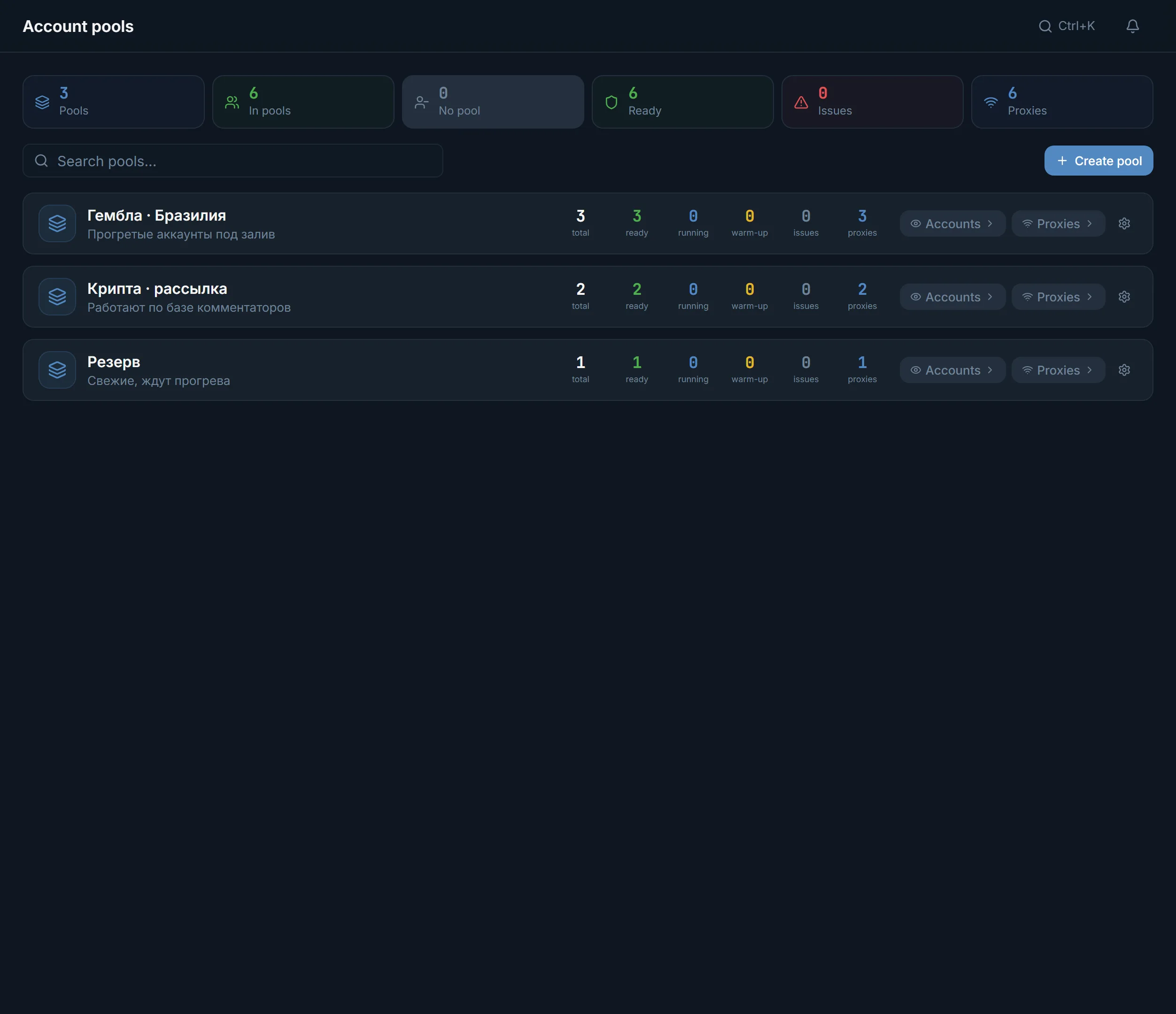
Account pools do this. A pool is a named group of accounts with proxies attached to it. One pool for a gambling offer, another for an info product, a third for a client.
- Create a pool: 'Name', 'Description' and 'Proxy policy'.
- Add accounts from the pool itself or with the 'To pool' bulk action in the account manager.
- One account belongs to exactly one pool, and one proxy to one pool as well. On a move the panel asks for confirmation.
- The panel spreads a pool's proxies across its accounts round-robin.
- 'Proxy policy' decides what happens to a failed address: 'Do not change automatically' or 'Replace with a free proxy'.
How do I hand out proxies to all accounts at once?
- 1
Import proxies
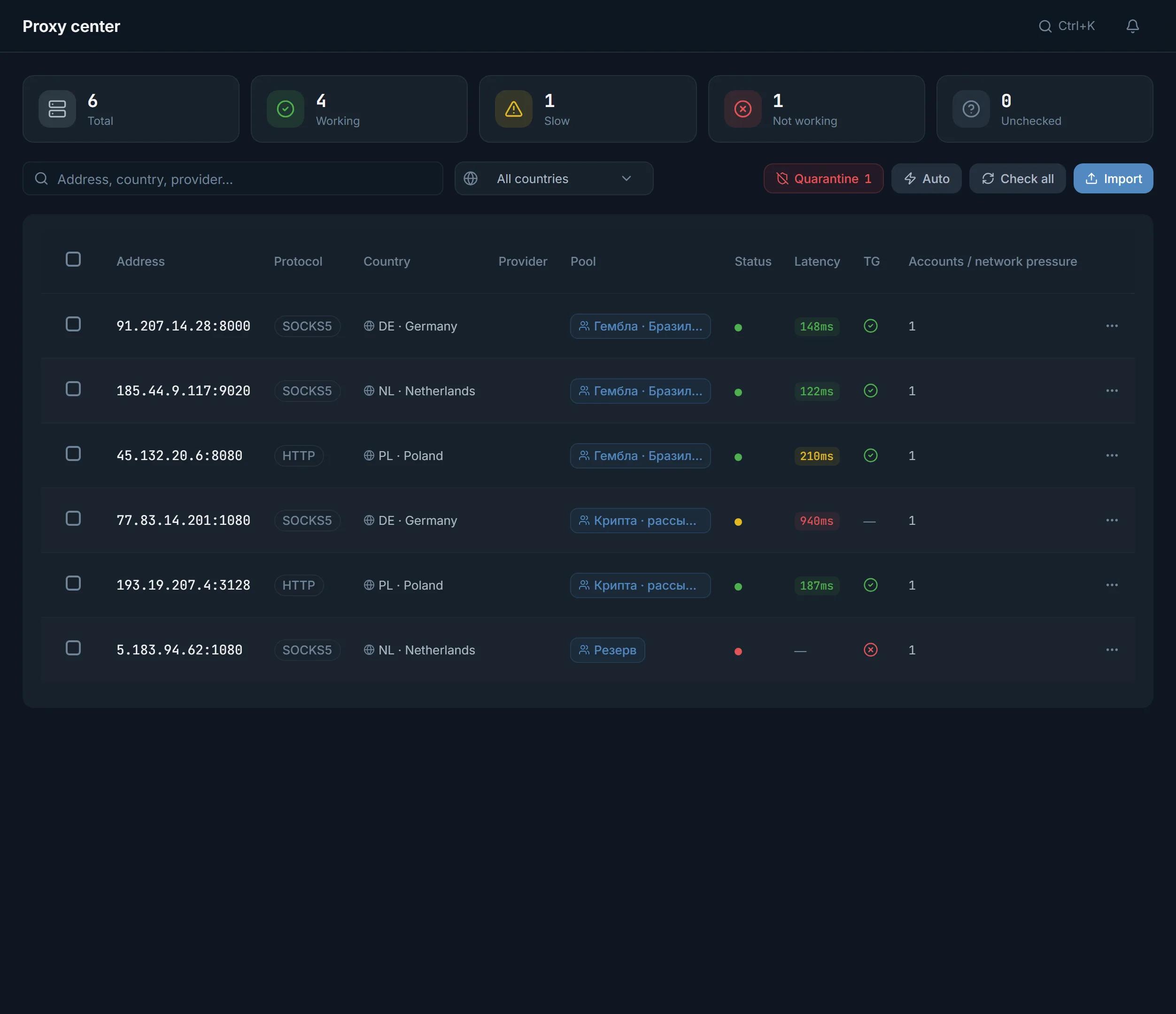
In the proxy center add a list of lines or a file. Four protocols are supported, MTProto among them. After the import the panel checks the new addresses right away.
- 2
Read the statuses
The tiles 'Total', 'Working', 'Slow', 'Failed' and 'Unchecked' work as filters. A separate mark shows whether Telegram specifically is reachable through the address. Failed proxies gather in the 'Quarantine'.
- 3
Hand out the addresses
Press 'Smart assignment': the panel spreads accounts without a proxy over free working addresses and shows what share of accounts is covered. From the manager, the 'Auto proxy' bulk action in the 'More' menu does the same.
Which proxy can I assign?
Only one that passed the Telegram check. The panel will not assign an unchecked or failed address to an account.
How do I set profiles and add protection for everyone at once?
- 1
Generate profiles
Tick the accounts and choose 'Profile generation' in 'More'. The 'Profile generation' window shows a preview: first name, last name, bio, username, date of birth and avatar. Not right? 'Regenerate'. Avatars are handed out at random, you can pin a particular one to an account or upload your own 'Operator pack'. Generation fully replaces the old profile data. Then 'Start generation'.
- 2
Set two-factor protection
In 'More' choose 'Two-factor protection'. 'Generate' creates a unique password for each account. 'One password' sets your password on everything selected. The third mode takes the password off. If an account already has a password the panel does not know, it asks for the current one.
How do I tell which accounts are alive?
Above the table are seven tiles: 'Active', 'In progress', 'Warm-up', 'Quarantine', 'Spam block', 'Frozen' and 'Invalid'. Clicking a tile leaves only such accounts in the table.
- 1
Run the check
Tick the accounts and press 'Check'. In the 'Account check' window the base items are 'Restrictions', 'FloodWait', 'Freeze' and 'Authorization'. Optionally add 'Gifts and stars', 'Dialogs', 'Channels' and 'Administration'.
- 2
Read the outcome
In the check results each account has its own status. The panel keeps the @SpamBot answer for an hour. Need a fresh one? Tick 'Ask @SpamBot again instead of waiting an hour'.
- 3
Take the weak ones out of work
'To quarantine' removes an account from jobs, 'Return to work' brings it back once it is fit again.
How do I launch a job on a whole group of accounts?
- 1
Open a module
Pick the job: mailing, warm-up, neurocommenting or mass looking. On launch the account picker opens.
- 2
Go to the 'Pools' tab
Each pool shows how many accounts are ready out of the total. One click on a pool ticks all of its ready accounts at once.
- 3
Confirm the selection
The job gets exactly the ticked accounts; the pool only helps you gather them in one click. If the pool is set to 'Replace with a free proxy', a failed address is swapped for a working one and the job does not stall.
Everything about accounts in one place
Loading, checking and sorting accounts into jobs are gathered on the page Telegram accounts for work.
FAQ
Can one account be in two pools?
No, one account belongs to exactly one pool. If you add an account from another pool, the panel warns you and asks to confirm the move.
What happens if a proxy in a pool fails?
It depends on the 'Proxy policy'. With 'Do not change automatically' the panel shows the status and leaves jobs alone. With 'Replace with a free proxy' it takes a working address that no account uses yet. Ticking 'Take the least loaded' picks the pool proxy with the fewest accounts.
Which proxy can I assign to an account?
Only one that passed the Telegram check. The address status and the separate Telegram mark are visible in the proxy center, and failed addresses sit in the 'Quarantine' with a reason.
How do I avoid assigning proxies to accounts by hand?
Three ways: the 'Automatically' mode during import, 'Smart assignment' in the proxy center and the 'Auto proxy' bulk action in the account manager.
How do I check many accounts in one go?
Tick them in the account manager and press 'Check'. The panel keeps the @SpamBot answer for an hour, and 'Ask @SpamBot again instead of waiting an hour' requests it right away.
Does a module launch on a whole pool?
The 'Pools' tab in the account picker ticks all ready accounts of a pool in one click. The job gets exactly the ticked accounts, and you can untick any you do not want.
Ready to open the panel?
Review the scenario constraints before launch.
Read next

Account manager
The workspace for all your accounts: tdata and session import, live statuses, a card for every account, and bulk actions over hundreds of accounts at once.

Account pools
Named account groups with their own proxies and a replacement policy: easy to pick in jobs and to keep projects apart.

Proxy center
Import, check and assign proxies for accounts: four protocols, a Telegram check, a quarantine for failed ones and smart assignment across the accounts.