How to post to many Telegram groups: chats, text, launch
How to send a message to topical Telegram chats: find groups where posting is allowed, prepare accounts, write the texts and launch the run.
- The «Posting: Allowed» filter keeps only chats where a message can be sent at all
- AI writes the first message for each chat, and {a|b} gives word variants
- The panel keeps the chat blacklist itself and labels the reason
To post to many Telegram groups you need a list of chats where you are allowed to write, accounts and a text. In TeleTraff they come together in the Chat broadcast module: it goes through the chats in rounds, joins only where Telegram would not otherwise let you post, and remembers the chats that refused.
Where do you find chats where you can post?
Finding a chat is easy, but you cannot always write in it: in some groups only administrators may post. So check access before the launch, not after the first refusal. What else limits sending to a list of chats is covered on the page about sending to multiple groups.
- 1
Open the database search
In Parsers open the «Database search» tab and switch to «Chats». No accounts are needed for the search.
- 2
Set the topic
Pick «Topic», «Language» and «Country», or type words into «Words in title or description». An affiliate buyer fits chats about traffic and funnels, crypto fits trader chats, an info product fits student chats, services fit city chats.
- 3
Keep chats where you can post
In the filters set «Posting» → «Allowed». Turn on «Hide already taken» and «Without my refusals»: the results will not bring back chats you already took or that refused you.
- 4
Save the results
Click «Save as a set». The set appears at once in the modules' target picker. Sets and export come with a plan.
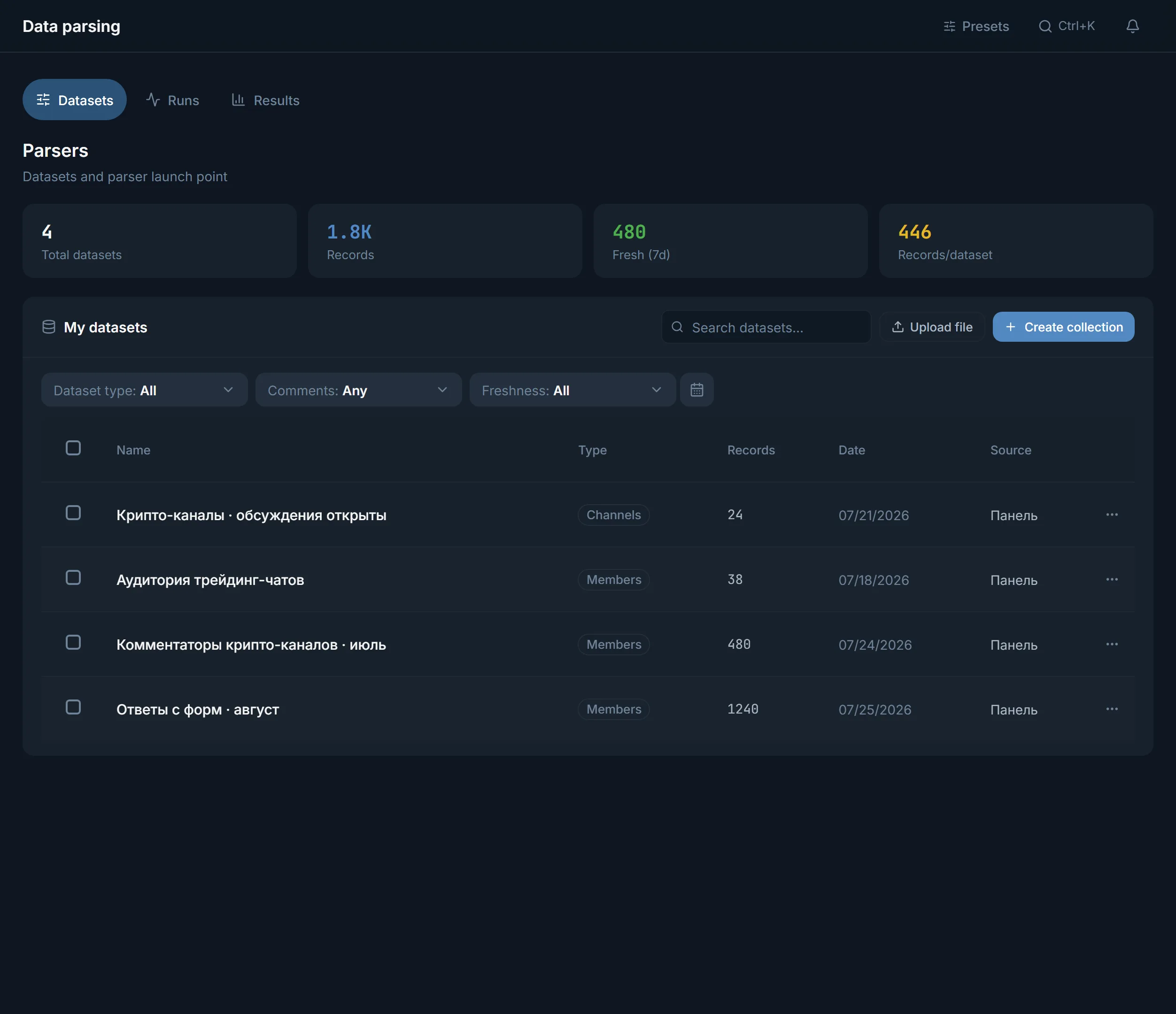
You can build your own chat base with the «Chats» parser in the same Parsers module. Finished bases live on the «My datasets» tab.
If a chat still refuses
In our experience a chat can be open for everyone to read while only administrators may write there. If such a chat gets into the list, the module adds it to the blacklist with the reason «Nobody can post».
How do you prepare accounts for posting to groups?
The panel itself warns about fresh accounts: added less than a day ago and never warmed up. By its own words, such accounts catch a spam block more often in this module.
- Add the accounts to the account manager.
- Warm them up in Warm-up. How to build a plan is described on the page about account warm-up.
- Use several accounts: the chat list is split between the selected accounts, and each one handles its own part.
- If an account already belongs to the groups you need, pick the «Account chats» source: it spends no joins.
How do you write a message that does not repeat in every chat?
The message is built from steps. Each step is either «My text» or «AI for each chat». The «Add step» button adds the next message of the chain, and the whole chain goes to every chat.
- Word variants. The «Insert word variants: {a|b}» button adds a fork. Each chat gets one of the variants. It is one message, not two.
- Placeholders. The «chat title» and «chat @» buttons put the name and address of the chat into the text.
- AI for each chat. In «What to write about» describe the offer: who you are and what you invite people to, for example a closed breakdown of crypto setups. AI writes only the first step, the rest go out as written.
- Repost. The «Post link» step forwards a ready channel post whole, with the source header.
How do you launch a run in Chat broadcast?
- 1
Choose where the chats come from
Open Chat broadcast. In the «Where we post» block pick «List» and give the saved set as the base. The other sources are covered in the module guide.
- 2
Pick the accounts
The list of targets is split between the selected accounts.
- 3
Build the message
In the «Run content» block add the steps described above.
- 4
Set the rounds
In «Rounds and workload» set «Passes» and the rest between rounds. If there are more chats than fit in a round, the list goes around in a ring. What each field means is described in the module guide.
- 5
Check the time and launch
If the estimate is longer than the run ceiling, the broadcast stops on time and the remaining chats read «Not taken up». Reduce the rounds or the breaks. After a restart, messages already sent are not repeated.
What happens to chats that refuse?
The panel keeps a shared chat blacklist itself: a chat lands there when it refuses or deletes messages, and the broadcast no longer goes into it. The reasons for entries, the threshold and managing the list by hand are described in the module guide.
FAQ
How is posting to groups different from direct-message mailing?
A group gets one public message that every member sees. Direct letters are addressed to people from a base, and that is done by [direct-message mailing](/en/telegram-mailing). In Chat broadcast the addressee is a chat, not a person, so there is no name or phone to substitute: only the chat title and its @.
Can I send a channel post with a button to the chats?
Yes, through the «Post link» step. An account cannot add a link button itself, so the post is forwarded ready-made, together with its button and the source header.
Ready to open the panel?
Review the scenario constraints before launch.
Read next

Telegram chat broadcast: the Chat broadcast module
A chain of messages goes into Telegram groups from several accounts. Where the chats come from, how rounds run, and what the module does with chats that remove messages.

Telegram parsers
Build datasets from Telegram: chat and channel members, channels and chats found by keyword, contacts from messages. A ready dataset goes straight to other modules.
 Guide
How to Send a Mass Message on Telegram: Four Ways and How to Choose
Four ways to send a mass message on Telegram: channel, bot, direct messages and group chats. When each fits, what it needs, and how to run the last two in TeleTraff.