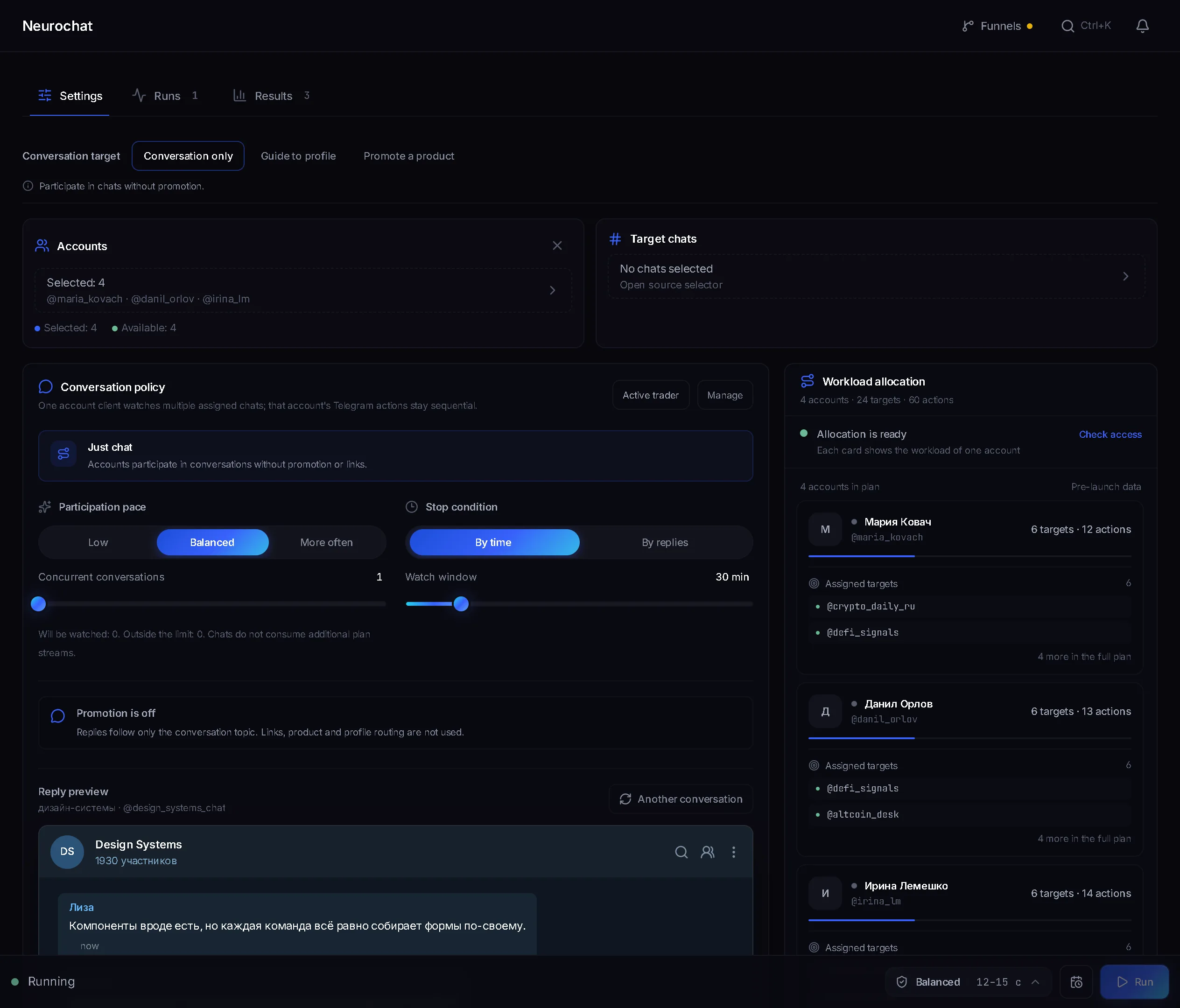
A checklist from the panel itself
The list repeats the conditions without which Neurochat will not launch a campaign: accounts, chats, instructions, a mode, a stop.
Neurochatting is launched from the Neurochat module, and a campaign will not start until accounts, chats, instructions, a mode and a stop condition are filled in. Below is the full checklist: what to fill in, which values are allowed and what to watch after the start.
In short
To launch neurochatting, select accounts in the Neurochat module, add target chats, write the AI instructions, turn on at least one participation mode and set a stop condition: a duration of up to 72 hours or a message count. Then check a reply in the preview, save the campaign and press Launch. If something is missing, the panel names what to fill in.
TeleTraff editorial teamUpdated: Checked in the panel
The list repeats the conditions without which Neurochat will not launch a campaign: accounts, chats, instructions, a mode, a stop.
Every setting comes with its range and starting value: 20 context messages, 72 hours at most, 2 accounts per chat.
The preview checks a reply without sending it, and the run results separate AI decisions from confirmed replies.
The Neurochat module checks the campaign before the start, and each condition has its own message in the panel. Which chats to take, how to write the instructions and which personas to create is covered in the neurochat guide. How neurochatting differs from neurocommenting is in a separate breakdown. Here is only what a launch needs.
In the Accounts block select at least one. Without it the panel says «Select accounts for the run».
«From a list»: the panel joins the selected groups, and each chat is assigned to one campaign account. «Existing memberships»: work only in groups the accounts already belong to at launch.
The field is required. «Account instructions» and «About the product» refine the role and the description, but only an empty instruction blocks the launch.
At least one of three is needed: «On triggers» (requires words or situations), «Join conversations» (on by default), «Start discussions» (requires a new topic interval).
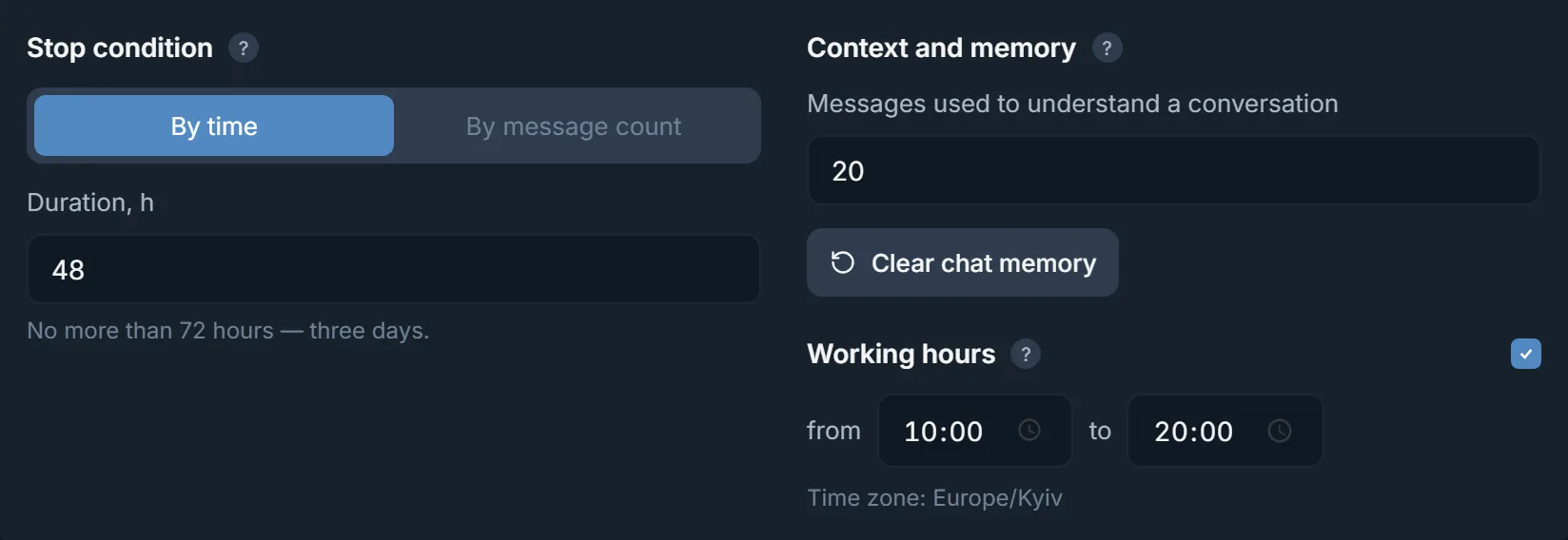
The «Messages used to understand a conversation» field must be filled in. A new campaign already has 20 there.
«By time» or «By message count». Until a duration or a message count is set, the run will not begin.
If the block is on, set «Continue after completion, min». Without it the panel will not launch the campaign.
Unsaved edits block the launch: the panel asks you to save changes before starting.
| Setting | Allowed | Default | How it works |
|---|---|---|---|
| «Stop condition» | «By time»: up to 72 h. «By message count»: a number of messages for the whole run | «By time», field empty | The clock starts when the first chat is ready. Waiting and FloodWait count toward the time, a manual pause stops the clock |
| «Messages used to understand a conversation» | From 1 to 80 | 20 | How many of the latest chat messages the AI reads before replying |
| «Working hours» | «from» and «to» must differ, plus a time zone | Off. When turned on, 10:00–20:00, time zone taken from the browser | Outside these hours accounts write nothing and start no topics |
| «Several accounts in one chat» | «Accounts per chat»: 2 to 100 | Off, value 2 | With the switch off and more accounts than chats, the extra accounts do not work in the run |
| «Reply to a person's message» | From 1 to the number of accounts per chat | 1 | How many accounts answer one message. The panel recommends one: several replies give away coordination |
| «New topic interval, min» | In minutes, at least a second | Empty, required with «Start discussions» | Counted separately for each chat |
| «Continue after completion, min» | In minutes | Empty, required with «Private conversations» | A fixed period after the time or message limit. Incoming messages do not extend it, a manual stop turns the AI off at once |
Chat and people filters are filled in as lists: «Excluded chats», «Allowed chats» and «Do not reply to these people», one link or ID per line. If the allowed list is filled in, work goes only there, and exclusions always take priority. «Automatic blocklist» is on by default. «Work only in allowlisted chats» is off, and turning it on with an empty list stops the launch. The allowlist threshold is set from 50 to 100, 80 by default.
Pace is chosen in the protection panel next to the Launch button, and a new campaign takes it from the workspace settings by default. On the setup screen this spot reads «Protection · Manual · Balanced 12–15 s».
| Pace mode | Pause before a reply |
|---|---|
| «Fast» | 5–7 seconds |
| «Balanced» | 12–15 seconds |
| «Careful» | 25–33 seconds |
| «Auto» | Chosen by the panel, never faster than «Balanced» |
Joining groups is a separate phase of the run. The pause between joins is set in «Group join delay», with a recommended range of 210–390 seconds. The phase has a ceiling of 30 joins. With «Existing memberships» there are no new joins.
«Reply preview» takes a sample conversation or your own context and shows a verdict: «Will reply», «Will skip» or «Will wait for more context». Nothing goes to Telegram. The preview needs the context depth to be set.
If «Start discussions» is on, press «Test starting a discussion»: it shows how the account would open a new topic.
Take one or two chats and a short period in «Stop condition», for example 2 hours, to see the work on a small sample.
Press Save, then Launch. The «Ready to launch» status at the bottom of the screen means all conditions are met.
In the «Run chats» block each chat has its own status, for example «Watching». The run clock starts when the first chat is ready.
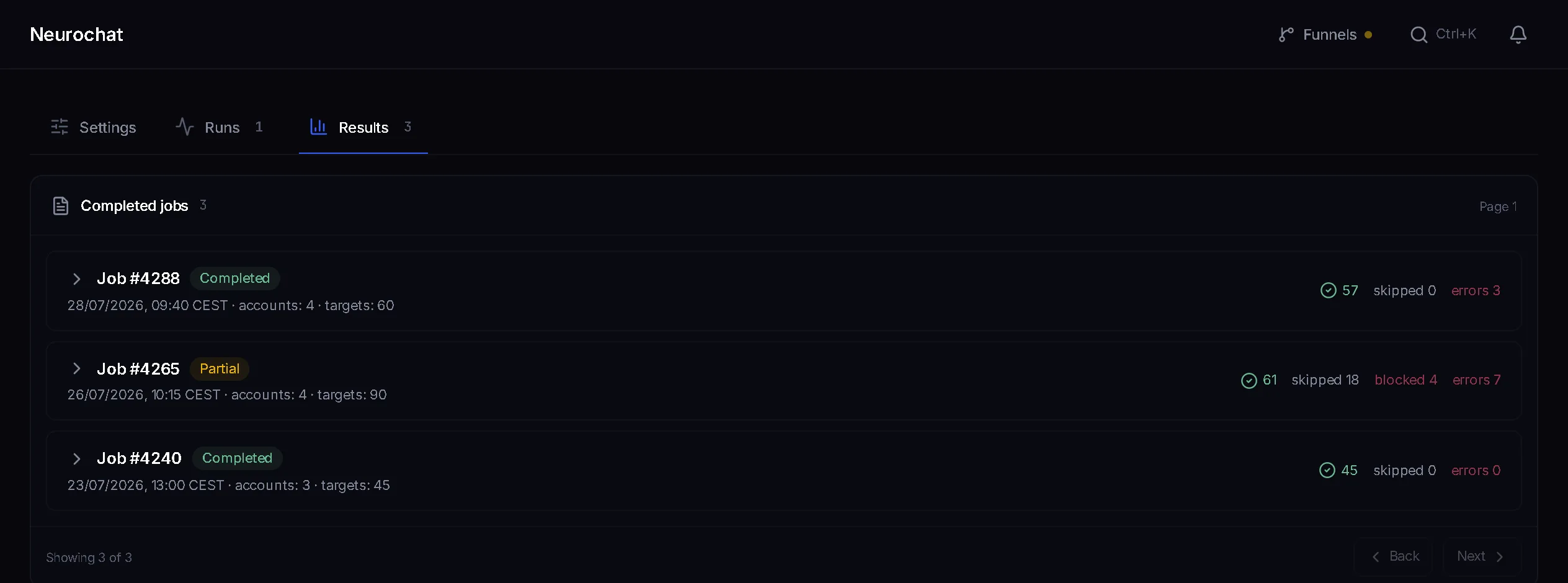
The «Messages and AI decisions» block shows which messages the accounts replied to and which they skipped.
What the accounts cost and how streams are counted is covered in the piece on the cost of neurochatting.
| Figure | What it means |
|---|---|
| «Read» | Chat messages the panel has read. These are not sends |
| «Reply decisions» | The AI decided to reply. A decision is not counted as a send either |
| «Confirmed» | Replies the panel found in the chat after sending |
| «Outcome unknown» | Telegram did not confirm the outcome. The message may have gone out, and it is not retried automatically |
| «Removed after sending» | A reply deleted right after sending is not counted as confirmed |
If there is a decision but no reply, the run names the reason: a pause or a stop by the operator, pacing, a request from Telegram to wait, a worker restart, a Telegram sending limit, or a message or time limit reached. In all these cases nothing was sent. A chat stays out of the work for these reasons:
A «By message count» run also ends after three days, even if the number was not reached.
While «Let several accounts into one chat» is off, the extra accounts do not work in the run.
A «Reply to a person's message» value above 1 gives away that the accounts act together. One looks most natural.
With «Working hours» on, an account that wakes up answers only messages addressed to it personally, not what was written overnight.
This mode does not join new groups. If the accounts are not in the chats you need, take «From a list».
A change in the «Run instructions» block applies only to that run, and the saved campaign stays as it was.
Terms on this page
Open the Neurochat module, select accounts and target chats, write the AI instructions, turn on a participation mode, set the «Stop condition», save the campaign and press Launch.
No separate program is needed: Neurochat runs in the TeleTraff web panel. AI by TeleTraff supplies the AI by default, and your own key is connected on the AI page in Settings.
No more than 72 hours. A «By time» run lasts the duration you set, and a «By message count» run ends at the message count or after three days if the number was not reached.
Such a chat is not taken into work, and the reason appears in the run results: the target is not a group chat, payment per message, the group is closed or migrated.
Yes, in the «Run instructions» block. The change applies only to that run, unsent replies are checked again, and the saved campaign stays as it was.
It clears the accumulated group-chat context for all runs of the saved campaign. History, results and Telegram messages are kept.
Read next
More in this section
Other sections
Sign up, connect accounts and go through the checklist: Trial gives 3 days for free.